

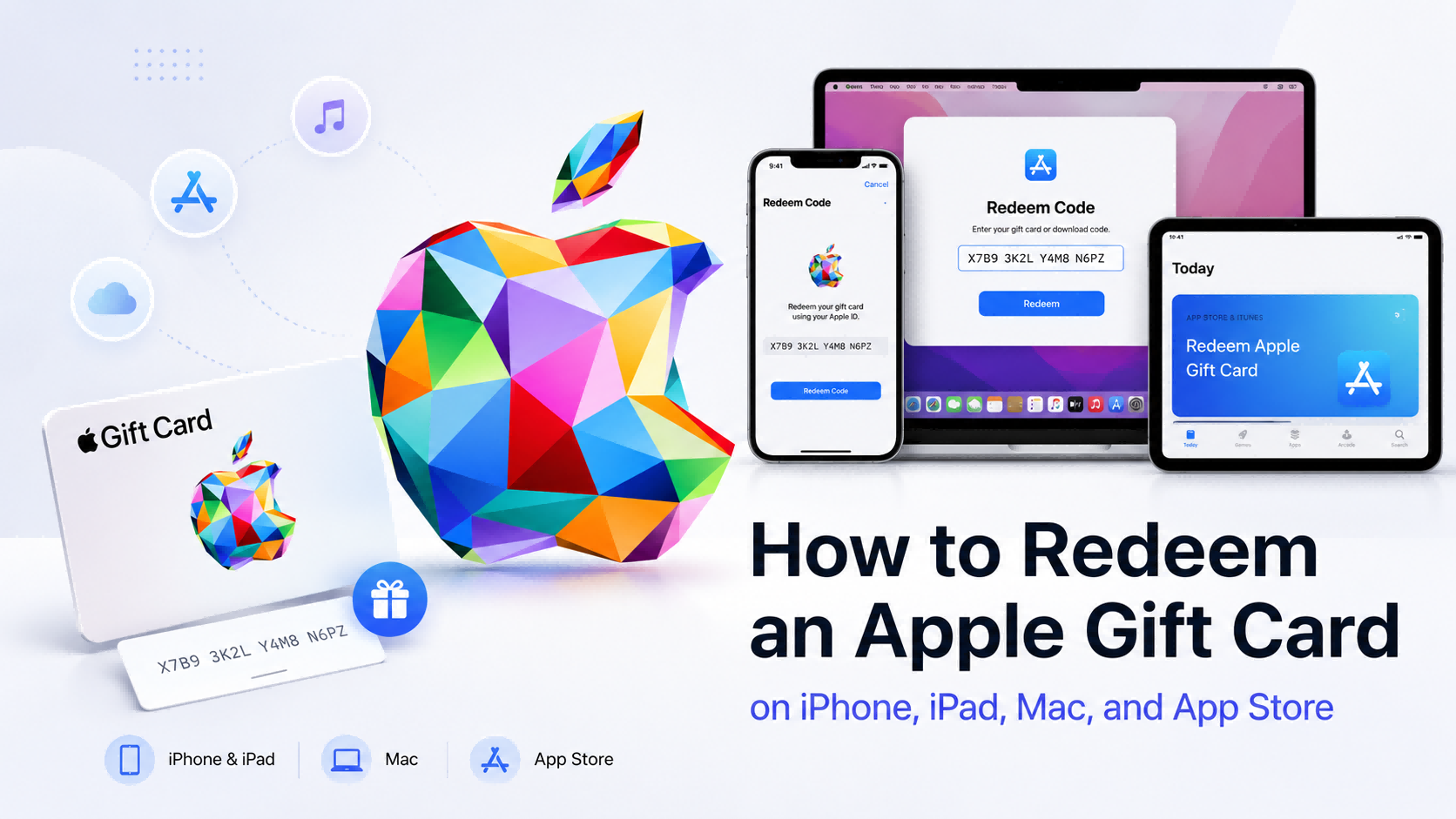
How to Redeem an Apple Gift Card on iPhone, iPad, Mac, and App Store
Apple Gift Cards are useful for App Store purchases, games, in-app purchases, Apple subscriptions, iCloud+, and, in supported countries or regions, Apple products and accessories. But before you can spend the value, you need to redeem the card correctly to your Apple Account balance.
The process is simple if your Apple Gift Card region matches your Apple Account region and you are signed in with the right account. In this guide, you will learn how to redeem an Apple Gift Card on iPhone, iPad, Mac, the App Store, Apple Music, Wallet, and from an email gift card. You will also learn what to do if the code does not work, how to check your balance, and how to avoid Apple Gift Card scams.
Topuplist Ad: Buy an Apple Gift Card Before You Redeem
Need a digital Apple Gift Card before redeeming? You can buy one through Topuplist Apple Gift Card. Topuplist offers digital Apple Gift Card codes in different regions and denominations, making it convenient for users who want to add balance to their Apple Account.
Before buying, always check the Apple Gift Card region carefully. A US Apple Gift Card should be redeemed on a US Apple Account, a Japan Apple Gift Card should be redeemed on a Japan Apple Account, and so on. Apple Gift Cards are region-specific, so choosing the wrong region may cause redemption errors. Always confirm the product name, region, value, and order details before payment.
Quick Answer: How Do You Redeem an Apple Gift Card?
To redeem an Apple Gift Card, open the App Store, tap your profile icon, choose Redeem Gift Card or Code, then scan the code with your camera or enter it manually. After successful redemption, the value is added to your Apple Account balance.
The most common redemption path is the App Store. Apple’s official guide also explains how to redeem Apple Gift Cards through the App Store, Apple Music app, or Wallet on supported iPhone setups. You can check Apple’s official instructions here: How to redeem your Apple Gift Card.
Before You Redeem: What You Need to Check First
Many Apple Gift Card problems happen before the user even starts redeeming. The most common issues are wrong region, wrong Apple Account, wrong code, or already redeemed cards.
Make Sure the Gift Card Region Matches Your Apple Account
Apple Gift Cards are generally tied to the country or region where they were purchased. A gift card bought for one region usually cannot be redeemed in another Apple Account region.
For example:
A US Apple Gift Card usually requires a US Apple Account.
A UK Apple Gift Card usually requires a UK Apple Account.
A Japan Apple Gift Card usually requires a Japan Apple Account.
If the region does not match, you may see an error during redemption. Apple’s support page for redeem errors explains region and code-related issues here: If you can’t redeem your Apple Gift Card.
Check Whether You Have the Correct Code
Physical Apple Gift Cards usually have a hidden redemption code on the back. You may need to peel or scratch the label to reveal the code. Digital gift cards usually include the code in an email or order details page.
Do not confuse the redemption code with:
Order number
Serial number
Barcode number
Receipt number
Product SKU
The redemption code is what you enter in the App Store or Apple redemption flow.
Sign In with the Right Apple Account
The redeemed balance goes to the Apple Account that is signed in during redemption. If you have multiple Apple Accounts, check carefully before redeeming.
Once a gift card is redeemed, the balance is usually tied to that Apple Account and cannot simply be transferred to another account.
Check If the Card Has Already Been Redeemed
If the code was already redeemed, Apple may show an error message. Before assuming the card is defective, check whether you redeemed it on another device or another Apple Account.
If you bought a digital code from a seller and it was already redeemed before you used it, contact the seller and Apple Support with your receipt and order details.
How to Redeem an Apple Gift Card on iPhone
Redeeming on iPhone is the easiest method for most users.
Step-by-Step Guide for iPhone
Open the App Store on your iPhone.
Tap your profile icon in the top-right corner.
Tap Redeem Gift Card or Code.
Choose Use Camera if you have a physical card.
Or tap Enter Code Manually if you have a digital code.
Enter the code exactly as shown.
Tap Redeem.
Wait for the confirmation message.
Check your Apple Account balance.
If redemption is successful, the card value is added to your Apple Account balance.
When to Use Camera Scan
Camera scan is best for physical Apple Gift Cards. It is faster than typing the code manually and reduces typing errors.
Use camera scan when:
The code is clear.
Lighting is good.
The card is not damaged.
The label has been fully removed.
Your iPhone camera can focus on the code.
If scanning fails, use manual entry.
When to Enter the Code Manually
Manual entry is best for digital codes and damaged physical cards.
When entering manually:
Type the code exactly as shown.
Do not add extra spaces.
Check similar-looking characters.
Make sure you are entering the redemption code, not another number on the card.
Try again slowly if the first attempt fails.
How to Redeem an Apple Gift Card on iPad
Redeeming an Apple Gift Card on iPad is almost the same as redeeming on iPhone.
Step-by-Step Guide for iPad
Open the App Store on your iPad.
Tap your Apple Account profile icon.
Tap Redeem Gift Card or Code.
Scan the card with the camera or enter the code manually.
Confirm the redemption.
Check your Apple Account balance.
iPad Redemption Tips
If your iPad is shared by family members, make sure the correct Apple Account is signed in before redeeming. The balance will be added to the account currently signed in.
If the code fails on iPad, try:
Entering the code manually.
Checking the card region.
Redeeming on iPhone.
Redeeming on Mac.
Contacting Apple Support if the issue continues.
How to Redeem an Apple Gift Card on Mac
Mac users can redeem Apple Gift Cards through the Mac App Store.
Step-by-Step Guide for Mac
Open the App Store on your Mac.
Sign in with your Apple Account.
Click your name or profile icon.
Select Redeem Gift Card.
Enter the gift card code.
Confirm redemption.
Check your Apple Account balance.
Mac Redemption Tips
Before redeeming on Mac, make sure:
You are signed in to the correct Apple Account.
Your Apple Account region matches the gift card region.
Your App Store app is working normally.
You enter the code carefully.
If redemption fails on Mac, try redeeming on iPhone or iPad. If the same error appears on multiple devices, the problem may be related to the card region, code status, or Apple system validation.
How to Redeem an Apple Gift Card in the App Store
The App Store is the most common place to redeem an Apple Gift Card. It works across iPhone, iPad, and Mac.
Redeem Through the App Store Account Page
The general process is:
Open the App Store.
Sign in.
Open your account profile.
Choose Redeem Gift Card or Code.
Scan or enter the code.
Confirm redemption.
After redemption, your balance becomes Apple Account balance. You can use it for eligible App Store purchases, games, in-app purchases, Apple subscriptions, iCloud+, and more.
Apple explains what the balance can be used for here: What you can buy with your Apple Gift Card or Apple Account balance.
Can You Redeem an Apple Gift Card Without the App Store?
Yes, in some cases. Apple also supports redemption through the Apple Music app and, in supported regions, through Wallet on iPhone.
However, the App Store remains the most universal method. If another method does not work, try the App Store redemption path.
How to Redeem an Apple Gift Card from Email
Digital Apple Gift Cards are often delivered by email. These can usually be redeemed through a Redeem Now button or by copying the code manually into the App Store.
Step-by-Step Guide for Email Gift Cards
Open the email that contains the Apple Gift Card.
Confirm the email is legitimate.
Click Redeem Now if available.
Or copy the gift card code.
Sign in with the correct Apple Account.
Complete redemption through Apple’s official flow.
Check your Apple Account balance.
How to Tell If the Gift Card Email Is Real
Before clicking any link in a gift card email, check:
Sender address
Spelling and formatting
Whether the email asks for your Apple Account password
Whether the link goes to an official Apple domain
Whether the order matches something you bought or received
If you are unsure, do not click the email link. Open the App Store manually and enter the code there instead.
What If the Email Code Doesn’t Work?
If the digital code does not work:
Check whether the code was copied correctly.
Confirm the gift card region.
Make sure it has not already been redeemed.
Try manual entry.
Contact the seller if the code appears invalid.
Contact Apple Support if the seller confirms the code should be valid.
How to Redeem an Apple Gift Card in Wallet on iPhone
In some countries or regions, iPhone users can redeem Apple Gift Cards through Wallet using the Apple Account Card.
When Wallet Redemption Is Available
Wallet redemption may not be available everywhere. If you do not see the Apple Account Card or redemption option, use the App Store method instead.
Wallet Redemption Steps
Open the Wallet app.
Tap the Apple Account Card if available.
Tap the more options button.
Choose the redeem option.
Use the camera or enter the code manually.
Confirm redemption.
Apple’s iPhone guide also explains how Wallet can be used for Apple Account balance in supported setups: Check your Apple Account balance in Wallet.
Wallet vs App Store: Which Is Easier?
For most users, the App Store is still the simplest option.
What Happens After You Redeem an Apple Gift Card?
After you redeem an Apple Gift Card, the value is added to your Apple Account balance.
The Value Goes to Apple Account Balance
Your Apple Account balance is linked to your Apple Account. It is not a separate wallet that can be freely transferred to other people.
You can check your balance in the App Store, account settings, or Wallet if supported.
Apple’s official balance page is here: Check your gift card balance.
What You Can Use the Balance For
Apple Account balance can be used for many eligible purchases, such as:
App Store apps
App Store games
In-app purchases
Apple Music
Apple TV+
Apple Arcade
iCloud+
Apple Books
Movies and music
Apple products and accessories in supported countries or regions
What You Cannot Use It For
Apple Account balance cannot be used for everything.
You generally cannot use it for:
Non-Apple bills
Taxes
Government fees
Rent
Debt
Police fines
Buying another gift card
Spending by another Family Sharing member
Some purchases that require a backup payment method
If someone asks you to pay for non-Apple products or services with Apple Gift Cards, it is likely a scam.
How to Check Your Apple Gift Card or Apple Account Balance
After redemption, you should check whether the value was added successfully.
Check Balance on iPhone or iPad
Open the App Store.
Tap your profile icon.
Look for your Apple Account balance.
If supported, check the Apple Account Card in Wallet.
Check Balance on Mac
Open the App Store.
Sign in.
Click your name or account.
View your Apple Account balance.
What If the Balance Does Not Show?
If your balance does not appear:
Confirm that redemption was successful.
Make sure you are signed in to the correct Apple Account.
Refresh the App Store.
Sign out and sign back in.
Try another Apple device.
Wait briefly.
Contact Apple Support if the balance still does not show.
Apple Gift Card Not Working? Common Redeem Errors and Fixes
Apple Gift Card errors are common, especially with digital codes, region mismatch, inactive cards, or typing mistakes.
Invalid Code
Possible causes:
Typing error
Wrong code field
Card not activated
Damaged code
Wrong card type
Wrong region
Temporary Apple system issue
Fixes:
Enter the code manually.
Check confusing characters.
Make sure you are using the redemption code.
Confirm the card region.
Contact the seller if the card was not activated.
Code Already Redeemed
Possible causes:
You redeemed it earlier.
Someone else used the code.
The seller delivered a used code.
The code was exposed or stolen.
Fixes:
Check your Apple Account balance.
Check your other Apple Accounts.
Review order and delivery email.
Contact the seller with proof of purchase.
Contact Apple Support if you believe the code was stolen.
Region Error
Possible causes:
The gift card region does not match your Apple Account region.
You bought the wrong region.
Your Apple Account country setting changed.
Fixes:
Confirm the card region.
Check your Apple Account country or region.
Use a card that matches your Apple Account region.
Contact the seller if the code is unused and you bought the wrong region.
Do not change your Apple Account country casually without understanding how it may affect subscriptions, apps, payment methods, and existing balance.
Card Not Activated
Physical cards may fail if the retailer did not activate them properly at checkout.
Fixes:
Contact the retailer.
Keep the receipt.
Keep the physical card.
Ask for activation confirmation.
Contact Apple Support if the retailer cannot help.
Redemption Page Not Loading
Possible causes:
Network problem
App Store issue
Apple system issue
Outdated device software
Temporary account problem
Fixes:
Check your internet connection.
Restart the App Store.
Try another device.
Update iOS, iPadOS, or macOS.
Try again later.
Apple Gift Card Region Lock: Why Region Matters
Region lock is one of the most important things to understand before buying or redeeming an Apple Gift Card.
Can You Redeem a US Apple Gift Card on a Non-US Apple Account?
Generally, no. A US Apple Gift Card usually needs a US Apple Account. If your Apple Account is set to another country or region, the code may not work.
How to Check Your Apple Account Region
You can check your Apple Account country or region in your account settings. Make sure it matches the Apple Gift Card region before redeeming.
What to Do If You Bought the Wrong Region
If you bought the wrong region:
Do not try random redemption attempts.
Contact the seller if the code is unused.
Check the refund or exchange policy.
Buy the correct region next time.
Avoid sellers who do not clearly label card regions.
If you buy from Topuplist Apple Gift Card, choose the correct region and denomination before checkout.
Safety Tips Before Redeeming an Apple Gift Card
Gift card safety is important because the code is the money. Once someone else redeems the code, recovery may be difficult.
Never Share Your Gift Card Code
Do not share:
Full gift card code
Card screenshot
Back of the physical card
Digital delivery email
Redeem link
Receipt with exposed code
If someone asks for the code before giving you a product, service, payment, job, prize, or refund, treat it as suspicious.
Watch Out for Apple Gift Card Scams
Apple Gift Cards can be used only for Apple products and services. Apple’s official scam warning explains that if someone asks you to use Apple Gift Cards to buy something not sold by Apple, you may be targeted by a scam. Read Apple’s official warning here: About gift card scams.
Common scam scenarios include:
Fake Apple Support calls
Fake tax or government payment requests
Fake debt collection
Fake prize claims
Fake job application fees
Romance scams
Fake online sellers
Someone asking you to read the code over the phone
Redeem Only on Official Apple Pages or Apps
Use official Apple apps or pages, such as:
App Store
Apple Music app
Wallet if supported
Apple’s official support instructions
Avoid websites that ask for both your Apple Account password and gift card code. That is a major red flag.
Where to Buy Apple Gift Cards Before Redeeming
If you do not have a card yet, buy from a trusted source. You can buy from Apple, authorized retailers, reputable online sellers, or trusted digital gift card platforms.
Buy the Correct Region
Before buying:
Check your Apple Account region.
Choose the same gift card region.
Confirm the denomination.
Review delivery method.
Check refund rules.
Avoid unclear “global” gift card listings.
Digital Code vs Physical Card
Topuplist CTA: Buy Apple Gift Card Online
Need an Apple Gift Card before redeeming? You can buy a digital code through Topuplist Apple Gift Card. Choose the correct region, select your denomination, complete payment, and redeem the code to your Apple Account balance through Apple’s official redemption process.
If this article is published on Topuplist, this is a normal internal product link and should pass SEO value to the Apple Gift Card product page.
Redeeming Apple Gift Card for Apps, Games, and Subscriptions
After redemption, your Apple Account balance can be used for many digital purchases.
App Store Apps and Games
You can use Apple Account balance for many paid apps and games from the App Store.
This is useful for:
Productivity apps
Photo editing apps
Learning apps
Premium games
Utility apps
In-App Purchases
Apple Account balance can often be used for in-app purchases processed through Apple billing.
Examples include:
Game currency
Battle passes
Premium features
Subscription upgrades
App content unlocks
Apple Music, iCloud+, Apple TV+, and Apple Arcade
Apple Account balance can generally be used for Apple subscriptions, including Apple Music, iCloud+, Apple TV+, and Apple Arcade.
Some subscription cases may still require another payment method on file, so check your payment settings if a charge does not go through.
Apple Products and Accessories
In supported countries or regions, Apple Account balance can be used at apple.com, Apple Store, or the Apple Store app for products and accessories.
This may include:
iPhone
iPad
Mac
Apple Watch
AirPods
Chargers
Cases
Cables
Other Apple accessories
Availability depends on country or region.
FAQ About Redeeming Apple Gift Cards
How do I redeem an Apple Gift Card on iPhone?
Open the App Store, tap your profile icon, tap Redeem Gift Card or Code, then scan the code or enter it manually.
How do I redeem an Apple Gift Card on iPad?
Open the App Store on your iPad, tap your profile icon, choose Redeem Gift Card or Code, then scan or manually enter the code.
How do I redeem an Apple Gift Card on Mac?
Open the Mac App Store, sign in, click your account or profile, choose Redeem Gift Card, enter the code, and confirm redemption.
Can I redeem an Apple Gift Card in the App Store?
Yes. The App Store is the most common place to redeem an Apple Gift Card on iPhone, iPad, and Mac.
Can I redeem an Apple Gift Card from email?
Yes. Open the email, verify that it is legitimate, click the redeem option if available, or copy the code and redeem it through the App Store.
Why is my Apple Gift Card not working?
Common reasons include region mismatch, invalid code entry, already redeemed code, inactive card, wrong card type, or temporary Apple system issues.
What happens after I redeem an Apple Gift Card?
The value is added to your Apple Account balance.
Can I transfer redeemed Apple Gift Card balance to another account?
Usually no. Redeemed balance is tied to the Apple Account used during redemption.
Can I redeem a US Apple Gift Card in another country?
Generally no. The gift card region must match your Apple Account country or region.
Can I use Apple Gift Card for in-app purchases?
Yes, if the in-app purchase is eligible and processed through Apple billing.
Can I use Apple Gift Card for iCloud+?
Yes. Apple Account balance can generally be used for iCloud+.
Is it safe to redeem Apple Gift Cards online?
Yes, if you redeem through official Apple apps or pages and never share your code with strangers.
Final Thoughts: Redeem Carefully and Check Your Balance
Redeeming an Apple Gift Card is simple when the region, code, and Apple Account are correct. Most users should redeem through the App Store, while iPhone users in supported regions may also use Wallet. Digital gift card users should verify the email and code before clicking any link.
The most important rules are:
Redeem with the correct Apple Account.
Match the gift card region to your Apple Account region.
Use the App Store or official Apple redemption methods.
Never share your code with strangers.
Check your Apple Account balance after redemption.
Avoid gift card scams.
If you need a digital Apple Gift Card before redeeming, buy the correct region from Topuplist Apple Gift Card, confirm the denomination carefully, and redeem it to your Apple Account balance through Apple’s official redemption process.
Used properly, an Apple Gift Card is an easy way to pay for apps, games, in-app purchases, subscriptions, iCloud+, and selected Apple products or accessories.