


Best Wuthering Waves Ray Tracing Settings After the July 25 Hotfix: FPS, VRAM, DLSS, and 8GB GPU Recommendations
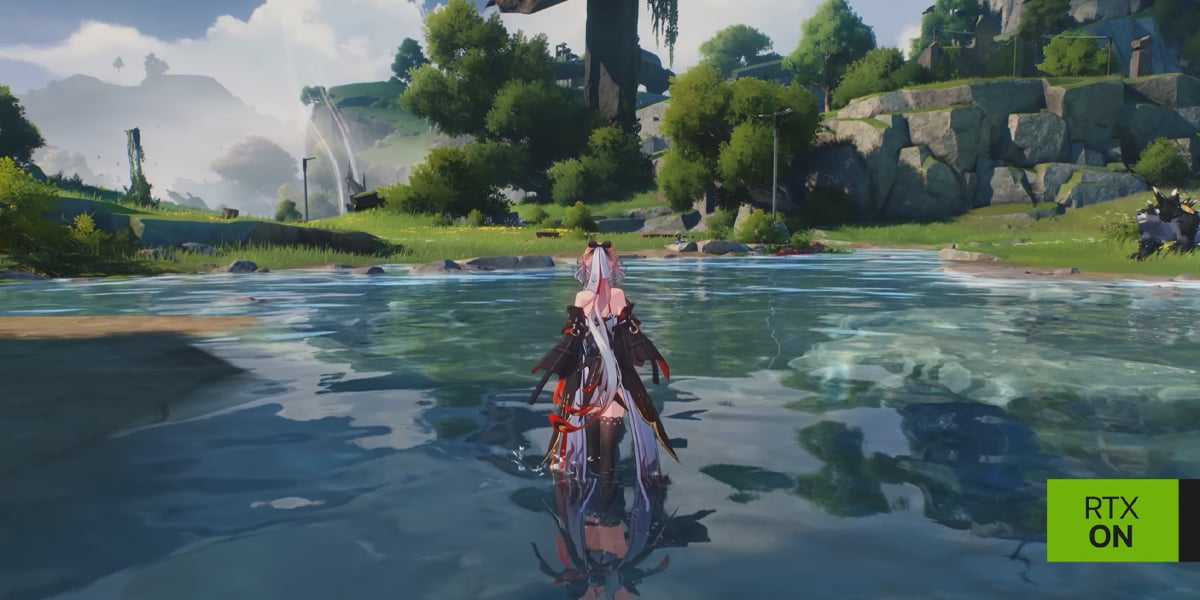
The July 25 Wuthering Waves hotfix improved severe ray-tracing freezes for many community testers, but it did not create one ideal preset for every PC. Stable settings depend on resolution, GPU performance, available VRAM, texture use, upscaling, frame generation, temperature, and the scene being tested. This profile-based guide helps players establish a non-ray-traced baseline, measure memory headroom, choose a practical image-quality target, and build conservative, balanced, or high-quality ray-tracing configurations without treating community hardware results as official requirements.
Wuthering Waves players testing the July 25, 2026 hotfix reported a major improvement to the long freezes and audio desynchronization associated with ray tracing on several PCs. The update did not make every graphics card behave the same way. Some systems now run smoothly at their previous settings, while others encounter crashes, high VRAM use, uneven frame times, or a Ray Tracing unsupported message.
The right settings cannot be chosen from the graphics card name alone. Resolution, texture quality, ray-tracing level, upscaling mode, frame generation, system memory, background GPU use, temperature, and the current game area all affect the result. An 8 GB graphics card can be stable at a conservative 1080p profile and unstable at a high-resolution profile. A card with more memory can still perform poorly if its ray-tracing throughput is insufficient.
This guide uses profiles rather than a universal preset. It explains how to build a baseline, measure headroom, select an upscaling mode, choose a frame-rate target, and stop increasing quality before the system begins to freeze.
Important Boundary: Community Results Are Not Official Requirements
The post-hotfix reports used in the performance discussion come from players testing different hardware. They can identify patterns, but they do not replace the compatibility information shown by the Wuthering Waves client or launcher.
Use these rules:
If the client marks Ray Tracing as unsupported, do not force it through hidden configuration edits.
If the option is available, begin at the lowest practical ray-tracing level.
Treat an 8 GB recommendation as a conservative test profile, not a promise.
Compare the same route before and after every change.
Keep the last stable configuration written down.
Use the live graphics descriptions as the final reference for available options.
A stable profile is defined by repeatability, not by one successful screenshot.
Establish a Non-Ray-Traced Baseline
Before optimizing ray tracing, determine how the system performs without it.
Launch the game in the supported DX12 mode.
Disable ray tracing.
Choose the intended display resolution.
Select a stable texture and effects preset.
Disable unnecessary overlays and background recording.
Travel through a repeatable route containing open terrain, reflective surfaces, dense objects, and one short combat sequence.
Record average FPS, major frame-time spikes, VRAM use, GPU use, temperature, and system-memory use.
Repeat the route after a normal restart.
If the baseline already stutters or crashes, ray tracing is not the first problem. Stabilize ordinary DX12 rendering before adding more load.
The Five Numbers That Matter
Average FPS
Average frame rate indicates overall throughput, but it can hide short freezes. A high average with severe spikes may feel worse than a lower, stable result.
One-Percent Low or Worst Frame-Time Spikes
These values reveal inconsistent delivery. Teleporting, camera turns, combat effects, and entering dense areas are more informative than standing still.
VRAM Use
Monitor how close the game approaches the graphics card's available memory. Leave headroom for peaks, overlays, recording, and operating-system use.
GPU Temperature and Clock Stability
A profile that works for five minutes may fail after the GPU becomes hot. Test long enough to reach normal operating temperature.
System Memory
When VRAM pressure is high, the system may shift data through slower memory paths. A PC with limited system memory can experience worse stalls even when the GPU is technically compatible.
How to Choose a Frame-Rate Target
Choose the target before choosing maximum quality.
Stable 30 FPS Target
This profile is appropriate when image quality is more important than responsiveness or when the GPU has limited ray-tracing performance. Use a consistent cap if the game supports it and avoid settings that repeatedly fall below the target.
Stable 60 FPS Target
This is the practical balance for exploration and combat. It usually requires upscaling, moderate ray tracing, and controlled textures on midrange hardware.
High-Refresh Target
Targets above 60 FPS demand substantial GPU headroom. Ray tracing may need to be reduced or disabled in heavy areas. Frame generation can increase displayed smoothness on supported hardware, but it does not replace a healthy base frame rate.
Do not choose a target only because the display supports it. Select the highest target the PC can maintain through real gameplay.
Upscaling Mode Selection
If the game offers DLSS or another supported upscaling method, choose the mode according to output resolution and performance need.
Priority | Suggested starting approach | What to inspect |
|---|---|---|
Image clarity | Quality mode | Fine hair, foliage, text, distant edges, movement stability |
Balanced play | Balanced mode | Combat clarity, reflections, frame-time consistency |
Performance recovery | Performance mode | Image softness, ghosting, particles, distant detail |
Native rendering | No upscaling | Whether the GPU has enough throughput and VRAM headroom |
At 1080p, aggressive upscaling can produce a visibly low internal resolution. Start with Quality when possible. At higher output resolutions, Balanced or Performance can provide a better tradeoff.
Do not compare modes while standing still only. Move the camera, sprint, fight, and inspect moving hair, weapons, particles, water, and reflective surfaces.
Frame Generation: Useful but Not a Cure
Frame generation can improve perceived smoothness on supported hardware, but it works best when the game already has a reasonable base frame rate.
Use it when:
The client officially offers the option for the hardware.
Base performance is stable.
Input response remains comfortable.
Generated frames do not produce distracting artifacts.
Disable it during diagnosis when:
The game freezes or crashes.
Input latency feels inconsistent.
Overlays report confusing frame values.
Visual artifacts make comparisons difficult.
First stabilize ordinary rendering, then upscaling, then ray tracing, and finally frame generation. This order makes each result interpretable.
Conservative Profile for 8 GB GPUs
An 8 GB graphics card should begin with headroom rather than maximum quality.
Recommended test order:
Output resolution: 1080p or a controlled 1440p test.
Ray tracing: lowest available level.
Textures: medium or one step below the maximum.
Upscaling: Quality at 1080p when stable; Balanced at higher resolution if needed.
Frame generation: off during baseline testing.
Background recording: off.
Browser and GPU-accelerated applications: closed.
Frame-rate target: stable 30 or 60 rather than uncapped.
Run the same route for at least 15 minutes, including teleporting and combat. If VRAM approaches the limit or stutters grow over time, lower textures or render resolution before increasing ray tracing.
The goal is not to keep a specific option enabled at any cost. It is to find a profile that survives ordinary sessions.
Balanced Profile for More VRAM and Midrange Ray-Tracing Performance
Players with additional memory headroom can begin with:
Native display resolution or Quality upscaling.
Low or medium ray tracing.
High textures if VRAM remains stable.
Stable 60 FPS target.
Frame generation tested only after the base profile is proven.
Moderate shadow and effects quality.
Increase one ray-tracing setting at a time. Repeat the route after every change. If the average FPS remains acceptable but frame-time spikes increase, return to the previous level.
More VRAM does not guarantee faster ray tracing. Memory capacity and ray-tracing computation are separate limits.
High-Quality Profile for Strong Hardware
A high-end system can pursue higher resolution and ray-tracing quality, but it should still maintain diagnostic discipline.
Begin with:
Quality upscaling or native rendering.
Medium ray tracing.
High textures.
A frame-rate target appropriate to the display.
Frame generation enabled only when supported and visually acceptable.
Background capture introduced after stability is confirmed.
Then test dense cities, rapid camera movement, combat effects, and repeated teleports. Maximum settings that work only in an empty area are not a stable profile.
Which Settings to Reduce First
When performance is inadequate, reduce settings in a deliberate order.
If VRAM Is Near the Limit
Texture quality.
Render resolution or upscaling mode.
Ray-tracing quality.
Recording resolution and background GPU use.
Other high-memory effects.
If GPU Use Is Maxed but VRAM Has Headroom
Ray-tracing quality.
Render resolution.
Shadow and reflection quality.
Effects quality.
Frame-rate target.
If the Game Freezes During Teleporting
Allow post-patch shader rebuilding.
Reduce texture and memory pressure.
Disable overlays.
Repeat with ray tracing off.
Use launcher repair if the same resource always fails.
If FPS Is High but Input Feels Delayed
Compare frame generation on and off.
Use a stable frame cap.
Remove wireless or overlay latency.
Choose a less aggressive rendering profile.
Image Quality Checks That Matter
Do not judge ray tracing only by a single reflection.
Inspect:
Character hair against bright backgrounds.
Fast weapon movement.
Water and wet surfaces.
Indoor-to-outdoor transitions.
Shadows under moving characters.
Distant foliage.
Particle effects during combat.
Text and interface clarity.
A lower ray-tracing setting with clean motion can look better during actual gameplay than a high setting with unstable denoising, ghosting, or frequent resolution drops.
Heat and Long-Session Stability
A ten-minute benchmark does not represent a long session. Temperature, VRAM allocation, and background activity can change over time.
Use a 45-minute validation:
First 10 minutes: exploration and shader warm-up.
Next 10 minutes: combat.
Next 10 minutes: teleport between different areas.
Next 10 minutes: menus, character screens, and inventory.
Final 5 minutes: repeat the original route.
Compare the first and final route. If frame rate declines as temperature rises, improve cooling or lower the target. If VRAM use grows and never recovers, reduce memory-heavy settings and document the behavior.
Laptop-Specific Recommendations
Laptop GPUs can share names with desktop models while operating at different power levels.
Laptop players should:
Connect the official power adapter.
Use the manufacturer's performance mode.
Confirm the discrete GPU is active.
Raise the rear of the laptop or improve airflow.
Avoid blocked vents.
Monitor CPU and GPU temperature together.
Test with external displays carefully because connection routing can change GPU behavior.
Battery mode is not a valid performance reference for ray tracing. Power limits can change dramatically when unplugged.
When Ray Tracing Should Stay Off
Disable ray tracing when:
It causes repeatable crashes.
The game reports unsupported hardware.
Frame-time spikes interfere with combat.
The required upscaling makes the image unacceptably soft.
The GPU or laptop overheats.
Audio repeatedly falls out of sync after visual stalls.
A stable non-ray-traced profile provides a much better experience.
Ray tracing is optional visual quality. Turning it off does not reduce Resonator strength, progression, rewards, or access to gameplay systems.
A Simple Settings Record
Keep a short note with:
Client and driver version.
Resolution.
Frame-rate cap.
Ray-tracing level.
Texture level.
Upscaling mode.
Frame generation state.
Average FPS and worst observed stall.
Peak VRAM use.
Test location.
This makes future patches easier to evaluate. Instead of rebuilding the profile from memory, retest the saved baseline.
Account Planning and Top-Up Safety
Graphics settings should remain separate from account spending. A hotfix or ray-tracing improvement does not change the value of a character, weapon, or paid currency. Confirm stable play first and make account decisions according to actual game goals.
Players who already intend to purchase currency can access Topuplist and the Wuthering Waves top-up page. Check the region, player identifier, product amount, and payment details before completing the transaction.
FAQ
What are the best ray-tracing settings after the July 25 hotfix?
There is no universal preset. Begin with a stable DX12 baseline, low ray tracing, conservative textures, and Quality or Balanced upscaling, then increase one option at a time.
Can an 8 GB GPU run ray tracing?
Some can under conservative conditions, but results vary by model, resolution, settings, background use, and scene. Treat 8 GB profiles as tests, not guarantees.
Should I lower textures or ray tracing first?
If VRAM is near the limit, lower textures or render resolution first. If GPU computation is the primary limit, reduce ray-tracing quality.
Is DLSS Quality always best?
It is a strong starting point when performance allows, especially at lower output resolutions. Balanced or Performance may be needed at higher resolutions or heavier ray-tracing levels.
Should I enable frame generation?
Only after base performance is stable and the client supports it for the hardware. Compare latency and artifacts before keeping it enabled.
Why does performance worsen after playing for a while?
Heat, growing VRAM use, background applications, or long-session resource behavior can reduce stability. Run a longer validation test.
Does ray tracing require DX12?
Use the supported DX12 rendering path shown by the client for ray-tracing testing.
Why does the game freeze when teleporting?
Shader compilation, memory peaks, asset loading, or damaged resources may contribute. Repeat a controlled route and compare ray tracing on and off.
Is maximum ray tracing worth lower combat FPS?
Only if the player values the visual difference more than responsiveness. For most action gameplay, stable frame pacing should come first.
Where can I top up Wuthering Waves?
Visit Topuplist and the Wuthering Waves top-up page. Verify account region and player information before payment.
Final Profile Rule
Build settings from the bottom up: stable DX12 without ray tracing, controlled resolution and textures, upscaling, low ray tracing, then optional frame generation. Test the same route after each change and preserve enough VRAM and thermal headroom for combat and teleporting.
The July 25 hotfix improved the experience for many community testers, but stability remains the final measure. A balanced profile that survives a 45-minute session is better than maximum settings that work only for a short screenshot.