


Wuthering Waves Ray Tracing Fix Guide After the July 25 Patch: DX12, Shader Rebuilds, Freezes, and Audio Desync
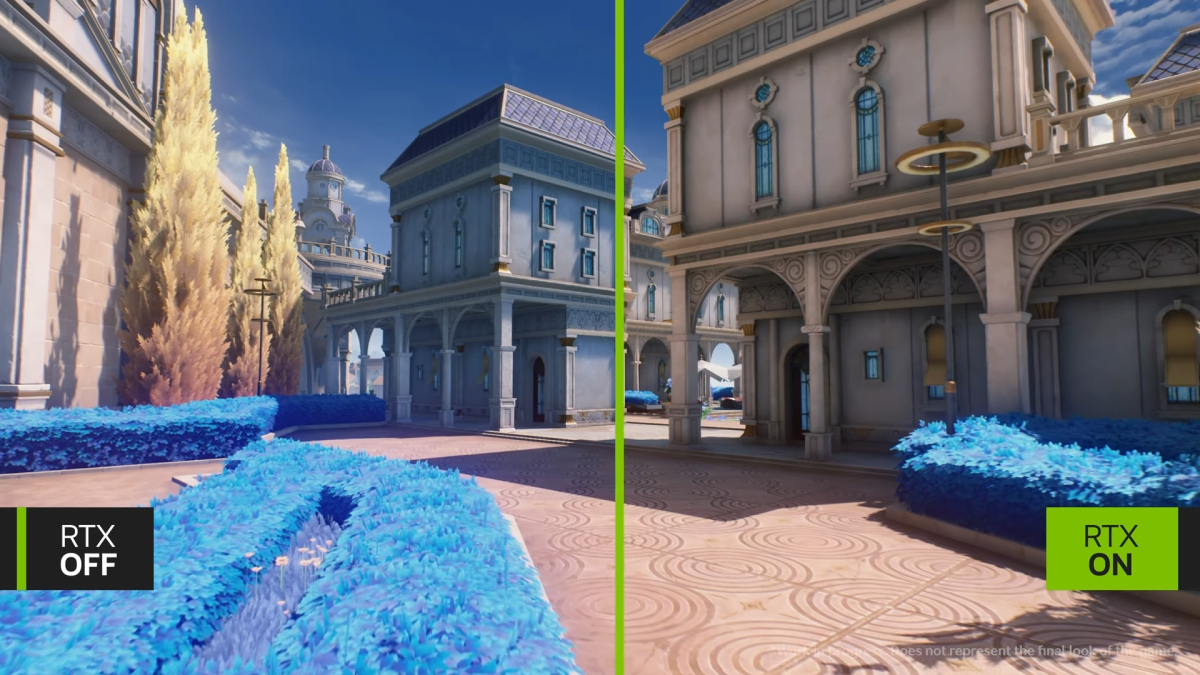
A Wuthering Waves client patch distributed around July 25 became a major community performance topic after players reported large improvements to ray-tracing freezes and audio desynchronization. The result is not identical on every computer: some systems run smoothly, some need a shader rebuild, and some 8 GB graphics cards still report crashes or memory pressure. This diagnostic guide separates community observations from guaranteed behavior and provides a controlled path for testing DX12, cache rebuilding, graphics drivers, overlays, frame pacing, audio synchronization, and support reports.
The Wuthering Waves patch distributed around July 25, 2026, drew immediate attention from PC players using ray tracing. Community reports described a download of roughly 400 MB and, on several systems, a major reduction in the severe freezes and audio desynchronization that had appeared with ray-traced rendering. Other players still reported crashes, instability, or high video-memory pressure, especially on some graphics cards with 8 GB of VRAM.
These reports are useful, but they are not a universal performance guarantee. A hotfix can improve one rendering path while leaving device-specific problems, old shader data, driver conflicts, overlays, or memory limits unresolved. The correct response is a controlled test, not an assumption that every remaining problem has the same cause.
This guide is organized as a diagnostic tree. It begins with client and rendering-path verification, then moves through shaders, drivers, memory, overlays, audio, and reproducible support evidence. The goal is to identify the smallest change that restores stable play without deleting unnecessary data or making several untraceable changes at once.
First Decide Which Problem You Actually Have
Symptom | Most useful first check | Do not assume |
|---|---|---|
Ray Tracing says unsupported | Confirm DX12 launch mode and hardware eligibility | That the July 25 patch removed hardware support |
Long freeze after loading | Allow shader compilation and retest the same area | That network latency caused a local rendering stall |
Crash when enabling ray tracing | Reduce VRAM pressure and remove overlays | That the graphics card is defective |
Audio continues while image freezes | Check rendering stall and frame-time spikes | That the audio files are corrupted |
Audio falls behind after several freezes | Restart after stabilizing graphics settings | That changing voice language is the primary fix |
Low FPS without major freezes | Build a lower-cost graphics profile | That reinstalling will improve normal GPU limits |
Good first session, bad later session | Check temperature, VRAM growth, background applications, and sleep-resume behavior | That the first test proved permanent stability |
Diagnosis starts with the symptom that can be observed, not with a preferred explanation.
Step 1: Confirm the July 25 Client Patch Is Installed
Close Wuthering Waves completely. Reopen the launcher, allow it to check for updates, and wait for every required download and file verification stage to finish. A launcher left open before the patch may show a completed state while the game process still holds older files in memory.
After updating:
Restart the computer if the game or graphics driver has been running for a long time.
Launch the game through the normal launcher.
Record the displayed client version when available.
Enter a safe, repeatable area before changing ray tracing.
Do not start the test inside demanding combat or a story sequence that cannot be replayed.
The community often described the download as approximately 400 MB, but the exact amount can vary because of platform, language resources, previous file state, and launcher packaging. Download size alone is not proof that the correct build is installed.
Step 2: Verify DX12 Before Testing Ray Tracing
Ray tracing depends on the supported rendering path. If the game offers DirectX 11 and DirectX 12 launch choices, use DirectX 12 for the ray-tracing test. DirectX 11 may be a useful temporary fallback for diagnosing general stability, but it should not be used to conclude that ray tracing itself works.
Check the following:
The launcher is set to the intended DirectX mode.
A shortcut is not forcing an older launch parameter.
The graphics driver recognizes the discrete GPU rather than an integrated adapter.
Windows graphics settings are not assigning the game to a low-power GPU.
Remote-desktop or virtualized display software is not changing feature detection.
If Ray Tracing remains unavailable under DX12, reopen the graphics page after a full restart. Device eligibility and the live client description should be treated as the final authority. Do not force hidden settings through edited files when the game reports unsupported hardware.
Step 3: Let Shaders Rebuild Properly
A rendering update can invalidate old shader data. The first launch, first entry into an area, or first use of a ray-traced effect may therefore be slower while new shaders are prepared.
Use a controlled shader test:
Select DX12 and the desired base graphics preset.
Enter a low-risk area.
Wait without rapidly opening menus or teleporting.
Move through the same short route for several minutes.
Return to the title screen or close the game normally.
Relaunch and repeat the identical route.
If the second run is much smoother, first-run compilation probably contributed to the stalls. If every run freezes at the same location, the problem is more reproducible and useful for reporting.
Do not delete every cache immediately. Rebuilding caches can create another period of stutter and remove evidence that the patch was the actual change. Use the launcher's official repair or cache tools before manually deleting folders.
Step 4: Separate a Rendering Freeze From Network Lag
A rendering freeze usually stops or severely delays visual updates while local audio may continue. Network lag more often produces delayed enemy responses, movement correction, interaction delay, or connection warnings while the client still renders frames.
Use these observations:
Likely Rendering or Shader Stall
Camera and animation stop together.
Frame-time display spikes sharply.
Audio may continue for a moment.
The same visual area reproduces the problem.
Offline menus or character previews can also stutter.
Likely Network Problem
The camera remains responsive.
Enemies or interactions update late.
Ping rises or connection warnings appear.
Other online applications also show instability.
The issue changes with network route or time of day.
Both can happen at once. Stabilize local rendering first, then test the network separately.
Step 5: Test Ray Tracing in Layers
Do not enable every expensive option at maximum quality for the first test. Begin with a known stable non-ray-traced profile.
Use this sequence:
Test the area with ray tracing disabled.
Record average frame rate, major frame-time spikes, VRAM use, and temperature.
Enable ray tracing at the lowest or least demanding available level.
Repeat the exact route.
Increase one setting only after the current profile completes two stable runs.
Stop at the first setting that introduces repeated freezes or crashes.
This identifies the performance boundary. It is more useful than a single maximum-quality test that fails without showing which option caused the change.
Step 6: Control VRAM Pressure
Ray tracing adds acceleration structures, buffers, and denoising work on top of ordinary textures, geometry, resolution, and effects. A graphics card with 8 GB of VRAM may run the feature under one profile and fail under another. Community reports after the patch remained mixed on some 8 GB cards, which means the amount of memory alone does not predict every result.
Reduce pressure in this order:
Lower texture quality one step if the game is near the VRAM limit.
Reduce render resolution or use an available upscaler.
Lower ray-tracing quality.
Reduce shadow, reflection, or effects settings that interact with the same scenes.
Close browsers, video tools, animated wallpapers, and GPU-accelerated background applications.
Disable high-resolution recording during the stability test.
Do not rely only on the average VRAM number. Short peaks during teleporting, combat, or camera changes can cause a crash even when ordinary exploration looks safe.
Step 7: Update or Roll Back Drivers Carefully
A new graphics driver can improve ray tracing, but a newly introduced driver problem can also reduce stability. Record the current driver version before making changes.
A safe driver comparison is:
Test the July 25 game patch on the current driver.
Save a screenshot or log of the result.
Install a stable driver recommended for the GPU, using the vendor's normal installer.
Restart the computer.
Repeat the identical route and settings.
If stability becomes worse, use the vendor's supported rollback method or reinstall the previously stable version. Do not repeatedly change drivers, game settings, Windows updates, and overclocking at the same time.
Custom overclocks and undervolts should be returned to a known stable baseline during diagnosis. A setting that is stable in another game may fail under a different ray-tracing workload.
Step 8: Remove Overlays and Injectors From the Test
Performance overlays, capture tools, filters, monitoring utilities, chat overlays, and visual injectors can interact with DX12 presentation.
For one clean test, disable:
Third-party visual filters.
Unnecessary game overlays.
High-resolution background recording.
Frame-rate limiters outside the game.
Animated desktop software.
Hardware-monitoring overlays that hook the renderer.
Monitoring is useful, but first confirm whether the monitoring tool itself changes the result. Use built-in metrics or one trusted application at a time.
Diagnosing Audio Desynchronization
Audio desynchronization can be a consequence of repeated rendering stalls. If the image freezes while audio advances, the timeline may remain offset after the game resumes.
Test audio only after graphics stability improves:
Restart the game to reset the session timeline.
Use the same output device throughout the test.
Disable virtual surround or audio enhancement temporarily.
Play a repeatable scene with dialogue, music, and animation.
Observe whether desynchronization begins after a frame freeze.
Switch audio output only between tests, not during a scene.
If sound remains delayed without any visual stall, check device drivers, sample-rate changes, Bluetooth latency, and background audio software. If the delay begins immediately after each freeze, the rendering problem remains the priority.
A/B Test Matrix
Test | Rendering mode | Ray tracing | Background tools | Purpose |
|---|---|---|---|---|
A | DX12 | Off | Off | Establish stable DX12 baseline |
B | DX12 | Low | Off | Test minimum ray-tracing cost |
C | DX12 | Preferred level | Off | Find the stable quality boundary |
D | DX12 | Preferred level | Normal tools | Identify overlay or recorder conflict |
E | DX11 | Unavailable or off | Off | Diagnose general renderer stability only |
Run the same route for every test. Changing location, combat load, weather, and settings together makes the result difficult to interpret.
When to Use Repair or Reinstallation
Use the launcher's verification or repair function when:
The patch download was interrupted.
The launcher reports damaged files.
Graphics options or interface assets are missing.
A crash occurs immediately and repeatedly after loading the same resource.
Consider a full reinstall only after repair, driver testing, settings reset, and a clean launch fail. Reinstallation consumes significant bandwidth and often does not solve hardware limits, shader compilation, or overlay conflicts.
Back up screenshots, logs, and custom settings before reinstalling.
Building a Useful Support Report
A strong report includes:
Client version and patch date.
Region and platform.
CPU, GPU, VRAM, system memory, and operating system.
Graphics driver version.
DX11 or DX12 mode.
Ray-tracing level and resolution.
Upscaling and frame-generation settings.
Exact location and action that triggers the issue.
Whether audio continues during the freeze.
Frequency across at least three attempts.
Screenshot, video, crash log, or launcher report number.
Describe the result without claiming a cause that has not been tested. A report saying the game freezes every time after teleporting to a specific location under DX12 ray tracing is more useful than saying the patch broke the graphics card.
Protecting Account and Purchase Plans
Performance troubleshooting should be completed before making purchases based on visual features. Ray tracing does not change character ownership, weapon power, or account progression. If the current computer cannot run it comfortably, the game remains playable with a stable non-ray-traced profile.
Players who already plan to prepare account currency can use Topuplist and the Wuthering Waves top-up page. Confirm the account region, player details, selected product, and payment amount before checkout. Do not treat a graphics hotfix as a reason to spend unexpectedly.
FAQ
Did the July 25 patch fix ray tracing for everyone?
No universal result should be assumed. Many community reports describe major improvement, while some systems still report crashes, freezes, or high VRAM pressure.
Why does the game say Ray Tracing is unsupported?
Confirm DX12 mode, discrete-GPU selection, current drivers, and hardware eligibility. Use the live client description as the final compatibility reference.
Can I use DX11 for ray tracing?
DX11 can help diagnose general stability, but the supported ray-tracing path requires the appropriate DX12 configuration.
Why does the first run stutter more than the second?
The client may be compiling or rebuilding shaders after the patch. Repeat the same route after a normal restart before judging stability.
Why does audio continue when the picture freezes?
A rendering stall can stop visual updates while audio continues. If the session resumes out of sync, stabilize rendering and restart before testing audio separately.
Is 8 GB of VRAM enough?
It depends on GPU model, resolution, textures, ray-tracing level, upscaling, background use, and scene load. Some community reports remain mixed, so test a conservative profile.
Should I clear every shader cache?
Not as the first step. Use official repair or cache controls and understand that rebuilding can temporarily create more stutter.
Should I reinstall the game?
Only after update verification, repair, clean-launch testing, driver checks, and a lower settings profile fail.
What information should I send to support?
Include hardware, driver, client version, DX mode, exact settings, reproduction route, frequency, and video or logs.
Where can I top up Wuthering Waves?
Visit Topuplist and use the Wuthering Waves top-up page. Verify region and player information before payment.
Final Diagnostic Rule
The July 25 patch appears to have improved serious ray-tracing problems for many players, but the remaining failures are not all one bug. Confirm the client build, use DX12, allow shaders to rebuild, establish a non-ray-traced baseline, add ray tracing gradually, and monitor VRAM and frame-time behavior.
Change one variable per test. When the problem remains reproducible, preserve the evidence and report the exact configuration. A stable lower-quality profile is more useful than a maximum preset that repeatedly freezes.