PUBG Mobile 120 FPS Guide: How to Enable It, Best Settings, and Performance Tips
For many PUBG Mobile players, upgrading from 60 FPS to 120 FPS is one of the biggest improvements you can make to your gameplay experience.
Higher frame rates make movement feel smoother, aiming more responsive, and recoil control easier to manage. Whether you're pushing Conqueror rank, grinding Classic Mode, or competing in scrims, a stable high-FPS experience can make the game feel significantly more fluid.
However, not every device can access PUBG Mobile's highest frame-rate options, and simply enabling 120 FPS doesn't guarantee smooth performance. Device compatibility, graphics settings, temperature, and software optimization all play important roles.
This guide explains how PUBG Mobile's 120 FPS mode works, how to enable it, and what you can do to maintain stable performance.
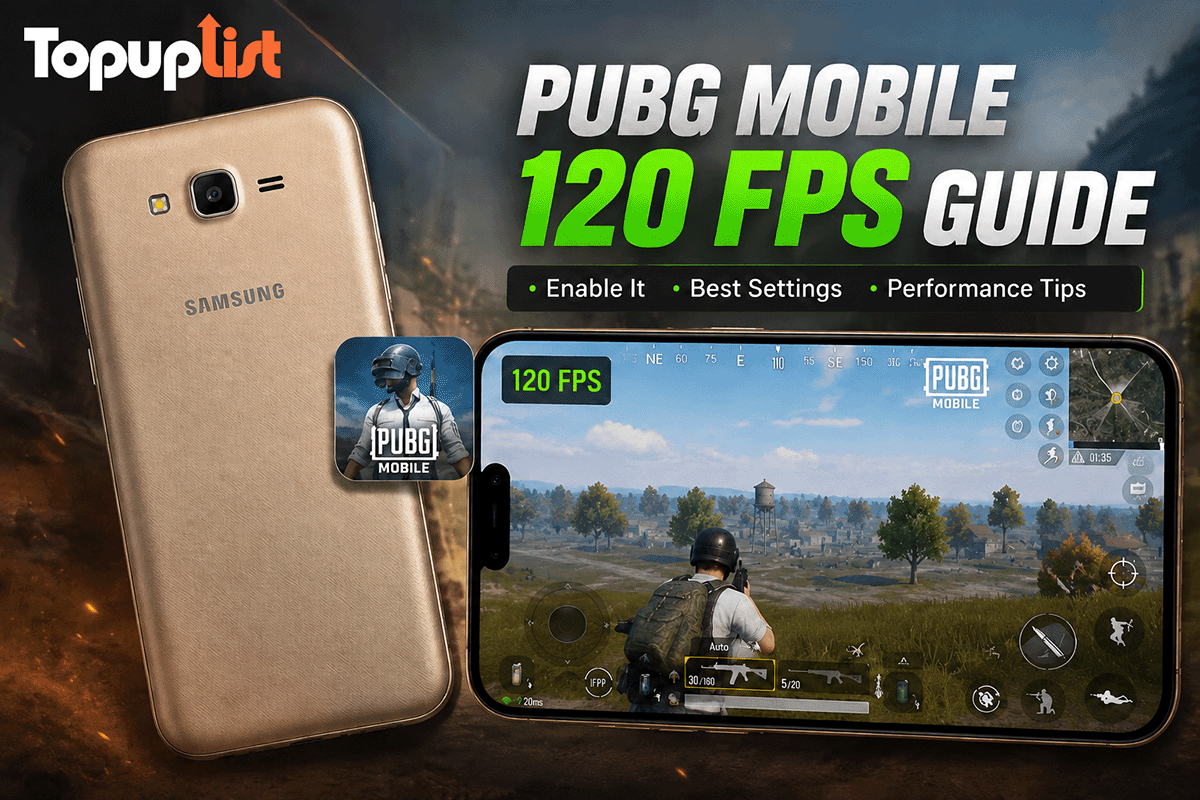
What Does 120 FPS Mean in PUBG Mobile?
FPS stands for Frames Per Second, which measures how many images your device displays every second.
A higher frame rate creates smoother animations and reduces the delay between your input and what appears on screen.
While higher FPS won't instantly improve your skill level, it can make tracking enemies, controlling recoil, and reacting during close-range fights feel more consistent.
How PUBG Mobile's 120 FPS Mode Works
PUBG Mobile uses different frame-rate options depending on your device and game version.
In the Graphics settings menu, you may see options such as:
The availability of these options depends on PUBG Mobile's device optimization and support list. Even if a phone or tablet has powerful hardware, certain frame-rate settings may not appear until they are officially enabled for that device.
Which Devices Can Run PUBG Mobile at 120 FPS?
Rather than focusing on individual models, it's more useful to understand the types of devices that typically support PUBG Mobile's highest frame-rate settings.
Keep in mind that PUBG Mobile's supported device list can change over time. A device that supports 120 FPS today may receive additional optimizations—or temporary restrictions—in future updates.
How to Enable 120 FPS in PUBG Mobile
If your device supports high frame rates, enabling the setting is straightforward.
Launch PUBG Mobile.
Open Settings.
Select Graphics.
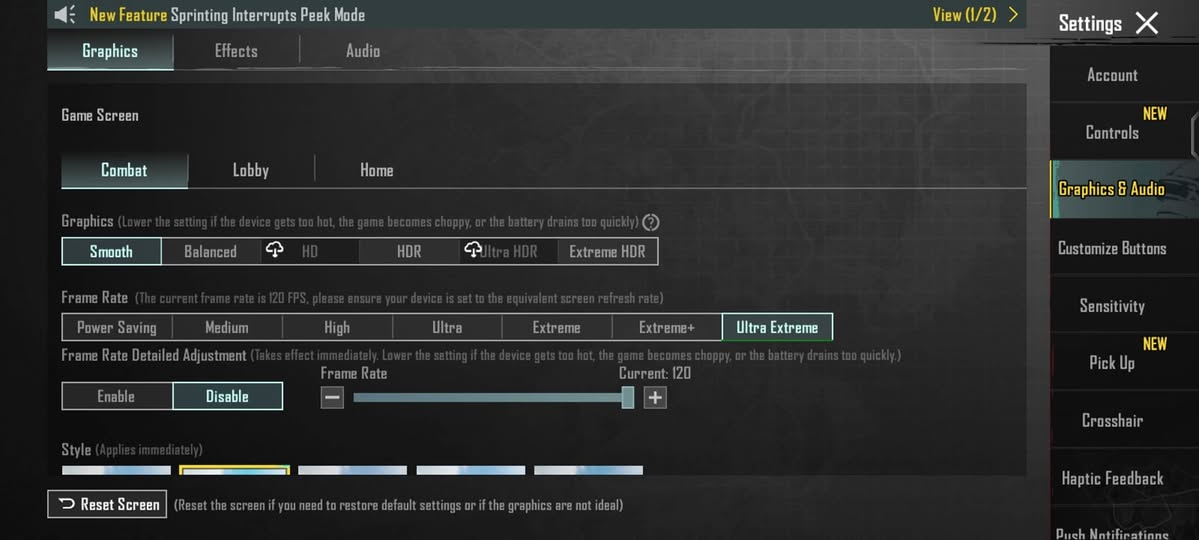
Set Graphics Quality to Smooth.
Choose the highest available Frame Rate option.
Apply the settings and restart the game if prompted.
Many players use Smooth Graphics + Ultra Extreme Frame Rate because it provides the most stable balance between visual clarity and performance.
Best Graphics Settings for Stable 120 FPS
Running maximum graphics settings isn't always the best choice for competitive gameplay.
Higher visual settings place additional load on the GPU and can increase device temperatures, which may eventually lead to frame drops.
For the most consistent experience, consider the following setup:
This configuration is widely preferred by competitive players because it prioritizes responsiveness and frame-rate stability.
Why Many Competitive Players Use Smooth Graphics
New players often assume that HDR or Ultra HD graphics offer a competitive advantage.
In reality, many experienced players intentionally use lower graphics settings.
Reasons include:
More stable frame rates
Lower device temperatures
Reduced visual distractions
Improved enemy visibility
Better long-session performance
When it comes to ranked matches and tournaments, smooth gameplay is usually more important than enhanced visual effects.
Why Can't I See the 120 FPS Option?
If your device should support high frame rates but the option doesn't appear, several factors could be responsible.
Display Refresh Rate Settings
Many smartphones use adaptive refresh rates by default.
Check your device settings and ensure the display is configured to use its highest available refresh rate.
Software Version
PUBG Mobile regularly updates device optimization profiles. Support for certain frame-rate options may vary between game versions.
Power Saving Features
Battery-saving modes often limit CPU and GPU performance.
Disable power-saving features before launching the game.
Device Temperature
Excessive heat can reduce performance and affect frame-rate stability.
Allow your device to cool down before playing if it feels unusually warm.
How to Maintain Stable 120 FPS
Unlocking 120 FPS is only the first step. Maintaining it throughout a match is equally important.
Keep Sufficient Storage Available
Storage pressure can affect system performance.
Close Unnecessary Background Apps
Before playing:
Close social media apps
Stop active downloads
Pause cloud backups
Exit unused background processes
Manage Device Temperature
Heat is one of the most common causes of FPS drops.
To reduce thermal throttling:
Remove thick protective cases
Avoid direct sunlight
Play in cooler environments
Take short breaks during long gaming sessions
Keep Software Updated
Performance improvements frequently arrive through:
PUBG Mobile updates
Android updates
iOS and iPadOS updates
Keeping everything up to date can improve stability and compatibility.
Is 120 FPS Worth It?
For most competitive players, the answer is yes.
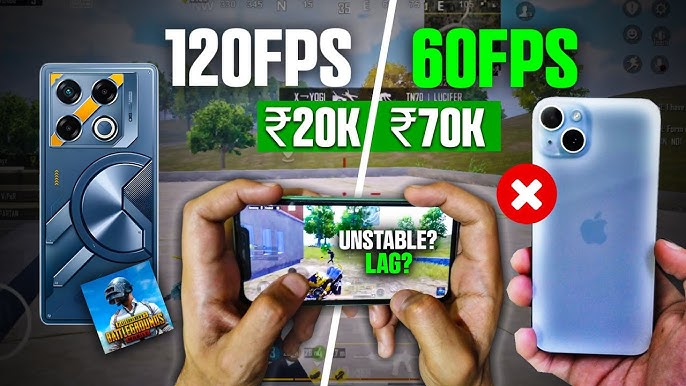
The jump from 60 FPS to 120 FPS is often more noticeable than upgrading graphics quality.
While skill and game knowledge remain the most important factors, a higher frame rate can make the entire experience feel smoother and more responsive.
Stay Ready for New PUBG Mobile Content
Whether you're preparing for a new Royale Pass season, a collaboration event, or limited-time rewards, maintaining a smooth gameplay experience starts with the right settings and a properly optimized device.
Players planning ahead for upcoming content can also top up PUBG Mobile UC through Topuplist, making it easy to unlock premium rewards and seasonal content as soon as they arrive.
Final Thoughts
120 FPS has become the benchmark for high-performance PUBG Mobile gameplay.
By combining the right device, optimized settings, and good device maintenance habits, players can enjoy smoother movement, faster reactions, and more consistent performance during matches.
If your device supports PUBG Mobile's highest frame-rate settings, using Smooth Graphics with the highest available FPS option remains one of the best ways to maximize both performance and