How to Play Destiny: Rising on PC (2026): Download, Settings & Controller Guide
Since launch, one question has been asked by countless players:
Can you play Destiny: Rising on PC?
While NetEase has not released a native PC client, many players already enjoy Destiny: Rising on larger screens using Android emulators. Playing on PC offers several advantages, including better performance, more precise controls, support for controllers, and an overall more comfortable gaming experience.
If you're looking to enjoy Destiny: Rising beyond a mobile device, this guide will walk you through everything you need to know.
Is There a Native Destiny: Rising PC Version?
At the time of writing, Destiny: Rising is available only on mobile platforms.
NetEase has not announced a Steam version, standalone PC launcher, or native Windows client. As a result, the most reliable way to play Destiny: Rising on a computer is through an Android emulator.
Fortunately, modern emulators can run the game smoothly while supporting keyboard, mouse, and controller inputs.
Why Play Destiny: Rising on PC?
Although the game was designed for mobile devices, many players prefer a PC setup for several reasons:
Larger screen for improved visibility during combat.
More precise aiming with keyboard and mouse.
Better ergonomics during long play sessions.
Controller support for a console-like experience.
Improved multitasking while gaming.
For players who spend hours farming gear, completing missions, or participating in endgame activities, a PC setup can provide a significantly more comfortable experience.
Step-by-Step Guide: Download and Install Destiny: Rising on PC
Step 1: Choose an Android Emulator
For the best experience, use a modern emulator designed for demanding 3D games.
Recommended options include:
MuMu Player 12
BlueStacks 5 (Pie 64-bit)
LDPlayer 9
Download your preferred emulator from its official website and complete the installation.
Step 2: Install Destiny: Rising
Launch the emulator.
Sign in with your Google account.
Open Google Play Store.
Search for Destiny: Rising.
Click Install and wait for the download to complete.
If the game is unavailable in your region, you may need to wait for regional availability or use the official game APK from a trusted source.
Step 3: Optimize Emulator Performance
Before launching the game, adjust your emulator settings for smoother gameplay.
These settings help reduce stuttering and improve overall stability during combat and exploration.
Best Keyboard and Mouse Setup
One of the biggest advantages of playing on PC is the ability to use keyboard and mouse controls.
Most emulators include built-in keymapping tools that allow you to customize controls for movement, aiming, abilities, and interactions.
A typical setup might include:
Feel free to adjust these bindings based on your personal preference.
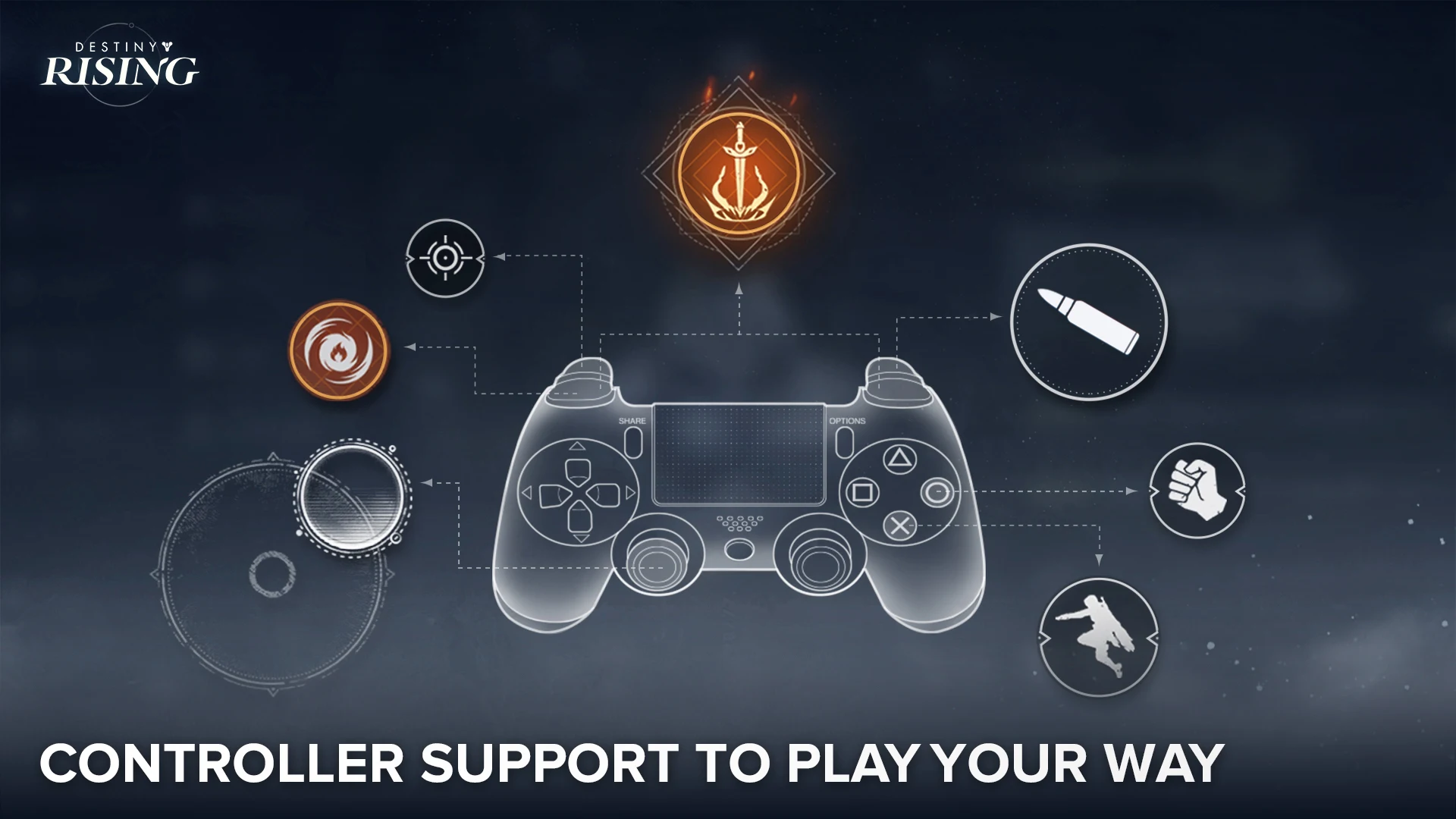
How to Use a Controller on PC
Destiny: Rising supports controller gameplay, making it a great option for players who prefer a console-style experience.
To connect a controller:
Connect your Xbox or PlayStation controller via USB or Bluetooth.
Launch your emulator.
Ensure gamepad support is enabled in emulator settings.
Start Destiny: Rising.
In most cases, the game should automatically recognize supported controllers.
If certain buttons do not function correctly, use the emulator's gamepad mapping feature to customize the layout.
Common Performance Fixes
If the game feels slow or unstable, try the following optimizations:
Enable CPU Virtualization
Virtualization Technology (VT-x or AMD-V) significantly improves emulator performance.
Most users can enable this feature through their motherboard BIOS settings.
Update Graphics Drivers
Outdated GPU drivers can cause graphical glitches or performance drops.
Make sure your NVIDIA, AMD, or Intel graphics drivers are fully updated.
Switch Graphics Rendering Modes
If you experience crashes or visual issues, switch between Vulkan and OpenGL inside your emulator settings.
Different hardware configurations often perform better with different rendering APIs.
Close Background Applications
Web browsers, recording software, and other resource-intensive programs may reduce emulator performance.
Closing unnecessary applications can free up CPU and RAM resources.
Alternative Ways to Top Up Your Account
Most players can make purchases directly through Google Play while using an emulator.
However, regional payment restrictions, unavailable payment methods, or account-specific transaction issues may occasionally occur.
In those situations, some players choose to use trusted third-party top-up platforms instead.
Platforms like TopUpList provide an alternative way to purchase in-game currency and bundles without relying entirely on the emulator's payment interface.
Always ensure you use reputable services and verify your account information before completing any transaction.
Frequently Asked Questions
Can I play Destiny: Rising on PC without an emulator?
No. Currently, there is no official PC version of Destiny: Rising.
Is playing through an emulator allowed?
Android emulators are commonly used for mobile gaming. However, players should always follow the game's Terms of Service and official policies.
Which emulator works best for Destiny: Rising?
MuMu Player 12, BlueStacks 5, and LDPlayer 9 are among the most popular choices for running Destiny: Rising on PC.
Does Destiny: Rising support controllers?
Yes. The game supports controller gameplay when properly configured through a compatible device or emulator.
Final Thoughts
Although Destiny: Rising does not currently offer a native PC version, modern Android emulators make it easy to enjoy the game on a larger screen with improved controls and performance.
Whether you prefer keyboard and mouse or a controller, a properly configured emulator can deliver a smooth and enjoyable experience. Until an official PC release arrives, emulation remains the best way to play Destiny: Rising on desktop.