


Where Winds Meet Xbox Account Link Error: How to Fix It Easily
The highly anticipated open-world martial arts RPG, Where Winds Meet (燕云十六声), offers an immersive cross-platform experience. However, many Xbox players have run into a frustrating roadblock right at the launch screen: account linking failures.
Whether you are getting hit with "account already in use" prompts, infinite loading screens, or missing cross-progression data, you are not alone. This comprehensive guide covers the exact reasons behind these errors and provides step-by-step solutions to get you into the game. For a broader look at setting up your console version optimization, check out the comprehensive Where Winds Meet Xbox Launch Guide.
Why Is Your Xbox Account Failing to Link?
Before diving into the fixes, it helps to understand why the system is blocking your connection. Most account linking issues stem from three primary scenarios:
Reverse Profile Conflict (Most Common): You accidentally launched the game on Xbox and created a new character before linking your existing PC, PlayStation, or NetEase account. The system now sees two different game saves and blocks the merger.
Network Handshake Timeouts: Connection restrictions between regional networks and Microsoft’s authentication servers cause the linking page to crash or show a
404/Timeouterror.Prior Third-Party Associations: Your Xbox Live account or NetEase Pass might already be tied to an old profile from a previous playtest or another NetEase title.
Step-by-Step Fix: The Correct Way to Link Your Account
To avoid data overwrites, you must follow the correct authentication order. If you want to sync your PC progress to your Xbox, always initiate the link from the platform that holds your main save file.
Method 1: The Standard In-Game Link (From PC/Main Account)
Step 1: Log into Where Winds Meet on your primary platform (PC/NetEase client) where your main character exists.
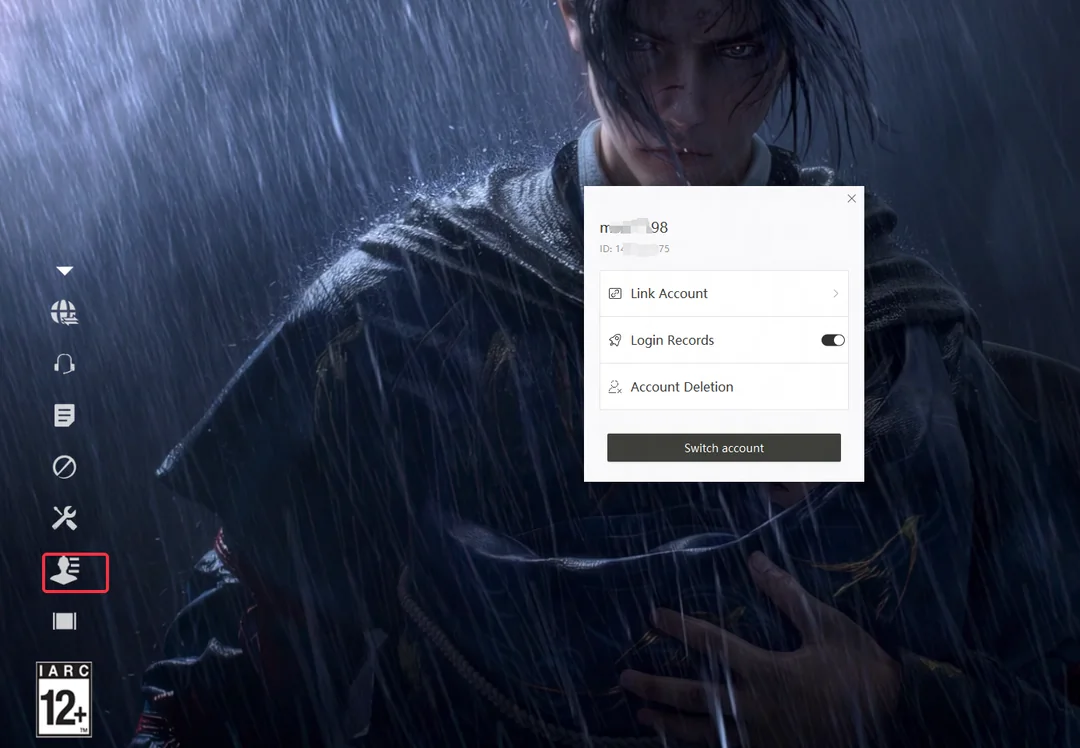
Step 2: Navigate to the Main Menu and open the User Center (or Account Settings).
Step 3: Select Linked Platforms and choose Xbox Live.
Step 4: A browser window will pop up. Log into your Microsoft account and authorize the permissions.
Method 2: The Web-Based Reverse Link (If Xbox Browser Crashes)
If your Xbox console fails to open the external browser link, use your mobile phone or PC browser instead:
Troubleshooting Specific Real-Player Scenarios
Scenario A: "Account already possesses independent data" Error
This happens because a "placeholder" character was automatically generated the moment you booted up the game on Xbox.
The Solution: > 1. Log into the game on your Xbox console.
2. Open the User Center from the login screen.
3. Look for the Unlink/Delete Current Temporary Profile option.
4. If the button is locked, you must submit an in-game support ticket requesting the deletion of the "blank" Xbox data to free up the account slot.
Scenario B: Migrating from PlayStation/Mobile and Missing the Xbox Link Option
Many players who previously enjoyed Where Winds Meet on PS5 or mobile have noticed that the option to link an Xbox account is missing or hidden within the console UI. If you launch the game on Xbox first, it automatically creates a fresh, unlinked profile, locking you out of your cross-progression.
Fortunately, community members have discovered a reliable workaround using the mobile app to force the link—but this only works if you have NOT yet launched the game on your Xbox console.
⚠️ Important Note: If you already launched the game on Xbox and a new account was automatically created, this mobile workaround will fail. In this case, you must contact customer support directly to have the accidental Xbox placeholder profile detached from your gamertag.
Scenario C: Successful Link, But Progress is Wiped on Xbox
If you linked your accounts but find yourself starting from scratch on the console, the culprit is usually regional server mismatch.
Network Adjustments for Authentication Failures
If your linking screen stalls on a blank page or throws an error code, the connection between your network provider and the authentication server is dropping packets.
Use a Gaming VPN/GPN: Set your network accelerator or router to focus specifically on "Xbox Platform Login" or "Where Winds Meet Server Boost".
Change Your DNS: If you are experiencing DNS routing issues, manually change your Xbox network settings to use a stable public DNS, such as Google DNS or Cloudflare DNS.
For official status updates regarding Xbox Live server authentication issues, you can check the Xbox Status Page.
Quick FAQ
Q1: Can I link multiple Xbox accounts to a single NetEase profile?
A: No. Account linking operates on a strict 1:1 basis. You cannot pool characters from multiple Xbox IDs into one master account.
Q2: Will unlinking my account delete my game progress?
A: Your progress is stored securely on the game's cloud servers, not your console hardware. Unlinking simply removes the Xbox's authorization to access that data; your PC/PS5 save remains completely safe.
Q3: How do I claim my pre-registration and playtest rewards on Xbox?
A: Ensure your playtest account is properly linked to your Xbox ID. Once in the game, visit the designated Event NPC (such as the rewards coordinator near the Qinghe docks) to claim your items. For missing items, keep an eye on the official announcement channels via the Where Winds Meet Official Website.
Conclusion
Resolving the Where Winds Meet Xbox account link error comes down to one golden rule: always link your empty console account from your established main profile, never the other way around. By utilizing the mobile workaround for PlayStation transfers and correcting the platform hierarchy, you can seamlessly jump between your platforms.
If you encounter an uncommon error code not listed above, drop a comment below with the exact error message so the community can help you troubleshoot!