


Rise of Kingdoms Payment Failed? Common Causes and Easy Fixes
RoK payment failed? Here are the common causes (declined card, region lock, OTP) and step-by-step fixes for iOS and Android.
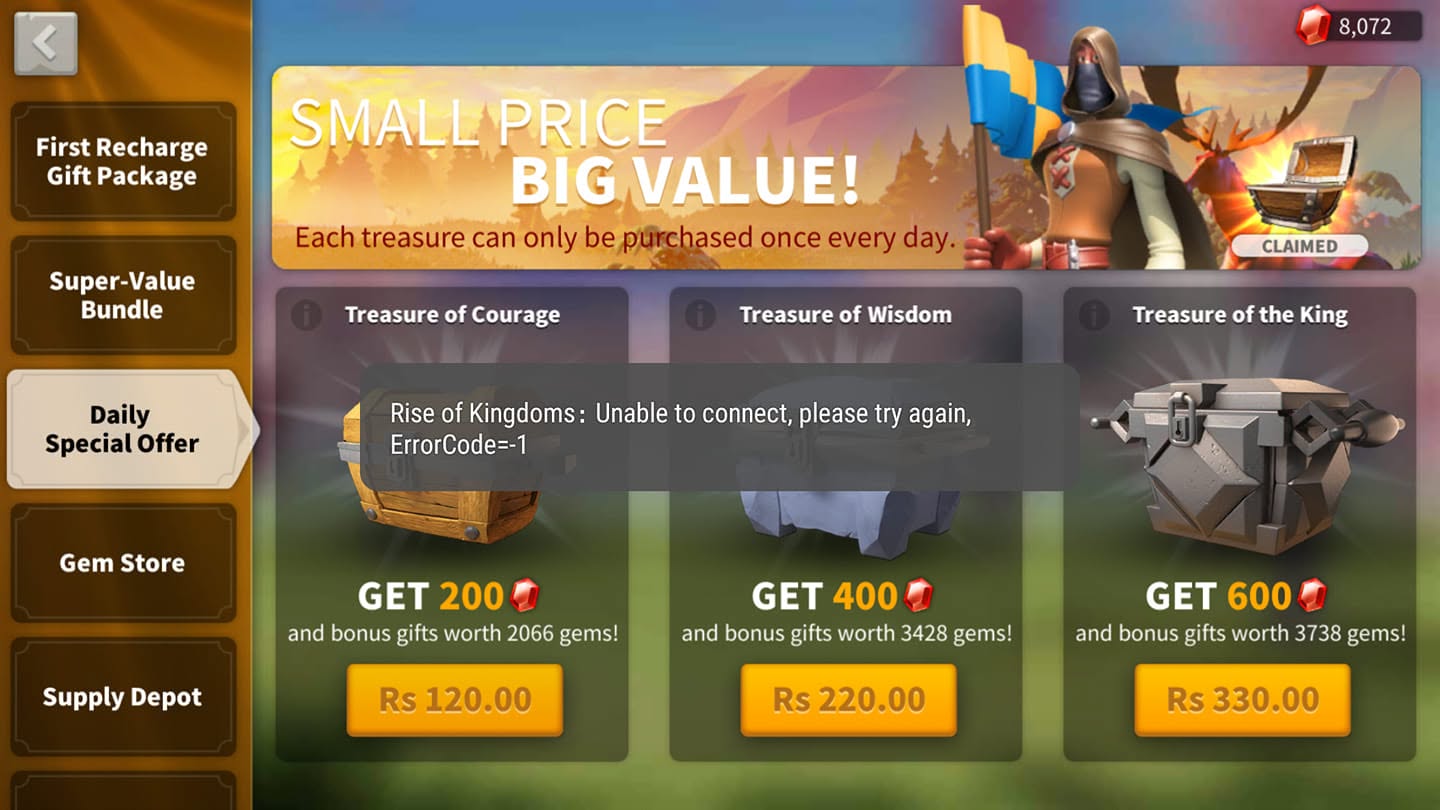
You hit “Buy,” the spinner turns, and then a red message: “Payment Failed.” No gems, no pack—and sometimes a confusing charge on your statement. A blocked checkout is one of the most frustrating moments in Rise of Kingdoms, especially mid-event when a bundle is time-limited. The good news is that most failures are fixable in a few minutes, and in many cases no money actually left your account.
Gems are the premium currency that drives VIP progression and permanent unlocks—as this gem strategy guide explains—so a blocked checkout stalls your whole account. This guide breaks down what “payment failed” really means, the usual culprits, the exact fixes for iOS and Android, and what to do if a failed attempt still shows up as a charge.
Skip the store errors: If App Store or Google Play keeps rejecting your purchase, you can run a Rise of Kingdoms top-up at Topuplist through the official Topuplist storefront, which uses its own verified checkout instead of the device store.
What “Payment Failed” Actually Means in Rise of Kingdoms
Before you troubleshoot, pin down which state you are in. Players often say “payment failed” for three very different situations, and the fix depends on which one you have.
Failed means the transaction did not complete. Typically no permanent charge is made—or only a temporary authorization hold that will drop off on its own.
Pending means the payment gateway accepted the request but has not finalized it. Money may be temporarily held, and the purchase can still complete or reverse within a day or two.
Not Received is a different problem entirely: the payment succeeded, but the gems never appeared. That scenario is covered separately; this article focuses on the checkout itself failing.
You will usually see one of these on-screen messages: “Payment Declined,” “Cannot Complete Purchase,” “Transaction Failed,” or “Your payment method was declined by your bank.” Each points to a breakdown at a different step—your bank, your device store, or the game’s connection to the payment gateway.
State | What you see | What it means | First move |
|---|---|---|---|
Failed | “Payment Failed” / “Declined” | No completed charge (or a hold) | Fix the cause, then retry |
Pending | “Processing” / temporary hold | Money reserved, not taken | Wait up to 48h, then check |
Not Received | Paid, but no gems | Different issue (delivery) | Recover gems, not retry payment |
Top Reasons Your RoK Payment Failed (Common Causes)
Understanding the root cause saves you from blindly retrying the same broken attempt. Here are the usual suspects.
Insufficient funds or a card near its limit. The single most common reason. Even a small authorization can fail if your available balance is below the amount.
Card issuer decline or bank fraud block. Banks frequently auto-decline gaming and cross-border charges, especially from a new merchant or a different country than your usual activity.
Expired or outdated card details. A card that lapsed last month but is still “saved” in your store account will fail every time.
Regional payment restriction or unsupported method. Some cards and payment types are not accepted in certain store regions or countries.
Unstable internet or app crash at checkout. If the request never reliably reaches the payment gateway, the transaction aborts and reports a failure.
App Store / Google Play account issue. The payment method may be disabled, the store country may be set incorrectly, or in-app purchases may be turned off at the device level.
Verification or OTP not received. Many payments require an SMS or email one-time code. If it never arrives, the transaction cannot finish.
RoK server or store maintenance. During scheduled maintenance or a store-side outage, payments are temporarily rejected across the board.
Too many rapid retries tripping fraud filters. Hammering “Buy” five times in a row can look like card-testing fraud to the gateway, which may then block further attempts for a cooldown period. Space out retries by several minutes after a failure.
Easy Fixes to Try Immediately (Step-by-Step Self-Help)
Most failures clear with a handful of quick checks. Work through these before contacting anyone.
Confirm the real charge. Open your bank app or your store’s order history (Apple “Report a Problem” or Google Play “Orders”). A “pending” authorization is not a completed payment—don’t treat it as lost money yet.
Restart the game and retry on stable Wi-Fi. Close Rise of Kingdoms completely and reconnect to a solid network. A flaky mobile signal is a frequent cause of aborted checkouts.
Update Rise of Kingdoms to the latest version. Outdated clients often break the in-app purchase flow after a store or game update.
Verify your store account settings. On iOS, open Settings → [your name] → Media & Purchases → View Account → Payment Information. On Android, open the Play Store → Profile → Payments & subscriptions. Make sure a valid method is enabled and the country is correct.
Update or re-add your card. Remove the saved card and re-enter it. This clears stale or partially saved data that silently breaks charges.
Try a different payment method. Switch between credit card, PayPal, carrier billing, or store gift-card balance. One method failing does not mean all will.
Request a new OTP. If a verification code is required, tap resend and check your SMS spam filter and email spam folder. Make sure the phone number and email on file are current.
Clear the app cache (Android). Settings → Apps → Rise of Kingdoms → Storage → Clear Cache can unstick a checkout that keeps erroring.
Reliable alternative: When the device store keeps rejecting you, a Rise of Kingdoms top-up at Topuplist via the official Topuplist storefront bypasses App Store and Google Play entirely, so store-side declines no longer block your purchase.
Platform-Specific Fixes: iOS (Apple) vs Android (Google Play)
The same symptom often needs a different fix depending on your device. Use the table to jump straight to your platform’s most likely culprit.
Setting to check | iOS (Apple) | Android (Google Play) |
|---|---|---|
Payment method enabled | Settings → Apple ID → Payment & Shipping | Play Store → Payments & subscriptions |
Store country correct | Apple ID → Country/Region | Play payment profile country |
In-app purchases on | Screen Time → Content & Privacy → iTunes/App Store | Google Play → Parental controls / account |
Balance option | Redeem iTunes gift card | Use Google Play balance / gift card |
Stuck state | Sign out/in Apple ID | Clear Play Store cache & data |
iOS / Apple specifics. If you use Family Sharing, an organizer’s “Ask to Buy” prompt can silently block the purchase. Screen Time content restrictions can also disable in-app purchases. Confirm your Apple ID country/region matches your card’s issuing country, and if a card keeps failing, redeem an iTunes gift card and pay from your Apple balance instead.
Android / Google Play specifics. Verify the Play payment profile country matches your card. Clear the Play Store’s cache and data (Settings → Apps → Google Play Store → Storage) to clear a corrupted checkout state. If your card is rejected, add Google Play balance via a Play gift card and complete the purchase that way.
Both platforms. Make sure in-app purchases are actually enabled in your account or device restrictions, then retry. A disabled IAP setting produces the exact same “failed” message as a declined card.
Regional Restrictions & Unsupported Payment Methods
Region is a hidden cause that trips up many travelers and players using foreign cards.
Why some regions block certain methods. Card issuers and device stores apply different rules per country. A Visa that works flawlessly in one region may be rejected in another because the store region and the card’s country don’t match.
Currency and store-country mismatch. Your store account has a fixed country/region, and it must align with the payment method you use. A card issued in Country A will often fail on a store set to Country B, even if both use the same currency symbol. This catches travelers and players who switched regions after moving, since the store country does not automatically follow your physical location.
What to do. Switch to a locally supported payment method, or load store credit through a region-appropriate gift card (iTunes or Google Play) and pay from that balance. This sidesteps cross-border card declines completely.
Avoid ToS-violating workarounds. Don’t fake your store region or route through proxies and VPNs to “unlock” a method. These tricks frequently flag your account, can void purchase protection, and may get the account restricted. Stay inside the rules and use a supported method instead.
When “Failed” Still Took Your Money (Pending Holds & Double Charges)
Sometimes the message says “failed” but your statement shows activity. Here is how to tell what really happened.
Pending authorization that later drops off. When a payment fails mid-process, the gateway may still place a temporary hold while it confirms the reversal. These holds look like charges but reverse themselves, usually within 1–5 business days depending on your bank.
How to confirm with your bank. Call or message your bank and ask one question: “Is this a hold or a posted transaction?” A hold will vanish on its own; a posted transaction means money actually moved and needs a dispute or refund.
Double-charge scenario. If you retried several times and two attempts both captured, you may see two line items. Compare the amounts and timestamps in your statement or store order history to confirm a true duplicate.
When to wait vs contact support. For a pending hold, wait—it resolves without action. For a real double-charge or a posted transaction with no delivery, open a support ticket or dispute through your store. Don’t keep retrying; that only creates more duplicates to untangle. Screenshot the statement entries and your store order history before they scroll out of view, since those images are what support and your bank will ask for first.
Entry type | How it appears | Action |
|---|---|---|
Hold / authorization | Temporary, same amount, pending status | Wait; it auto-reverses |
Posted transaction | Permanent line, money deducted | Dispute or request refund |
Duplicate posted | Two identical posted lines | Ticket + store dispute |
Still Can’t Pay? Contact Support & Safe Top-Up Alternatives
If every fix above fails, it is time to bring in help—and to consider a more reliable way to top up next time.
In-game support path. Open Settings (the gear icon) → Customer Service → tap the headset icon in the top-right corner to submit a ticket. As the game’s official app listing notes, the developer directs purchase issues to in-game support rather than external channels.
Info to provide. Include a screenshot of the exact error message, your device model, OS version, the payment method you tried, and your store region. The more specific the ticket, the faster the response.
Use a trusted top-up alternative. When the device store is the bottleneck, a verified storefront with its own checkout removes the App Store / Google Play failure points entirely. For a reliable next purchase, a Rise of Kingdoms top-up at Topuplist on the official Topuplist platform keeps your UID and server verified at checkout.
Avoid unofficial “too cheap” sellers. Suspiciously cheap gem offers are a common scam and account-risk vector. Stick to official or well-established channels and treat extreme discounts as a red flag.
FAQ
1. Why does Rise of Kingdoms say “payment failed” but I see a charge?
Usually it is a temporary authorization hold, not a real charge. Check whether the entry is “pending” in your bank app; holds reverse on their own within a few business days.
2. How do I fix a declined card in Rise of Kingdoms?
Confirm sufficient funds, then update or re-add the card in your store account. If your bank is auto-declining gaming charges, try PayPal, carrier billing, or a store gift-card balance instead.
3. Why can’t I complete a purchase on Google Play or Apple?
Check that your payment method is enabled, the store country matches your card’s country, in-app purchases are turned on, and Screen Time or parental controls aren’t blocking the buy. Clearing the store app’s cache also helps on Android.
4. What if I never receive the verification (OTP) code?
Tap resend, then check your SMS spam filter and email spam folder. Verify the phone number and email on file are current, and ensure your device isn’t blocking unknown senders.
5. My region doesn’t support my payment method—what now?
Use a locally supported method, or load store credit with a region-appropriate iTunes or Google Play gift card and pay from that balance. Avoid faking your store region, which can flag your account.
6. I was double charged—how do I get my money back?
Compare your statement and store order history to confirm two posted charges. Open an in-game support ticket and, if needed, dispute through Apple “Report a Problem” or Google Play. Don’t keep retrying, which creates more duplicates.
Pro tip: Dodge store-side declines altogether by using a Rise of Kingdoms top-up at Topuplist on the official Topuplist storefront, where checkout runs on a verified independent payment system.