


PUBG MOBILE July 26 iPad Pro M1 FPS Fix Explained: What Changed and How to Test the Patch
PUBG MOBILE released a July 26, 2026 patch aimed at severe FPS drops on iPad Pro models using Apple's M1 chip. This guide explains the limited scope of that fix and gives M1 owners a controlled validation protocol covering client updates, identical match scenarios, graphics profiles, temperature, battery state, resource repair, screen recording, and useful bug-report evidence. It does not treat reports from M2 or iPad Air 5 users as proof that those devices were included in the announced fix.
PUBG MOBILE published a patch on July 26, 2026, targeting severe FPS drops reported on iPad Pro models equipped with Apple's M1 chip. The patch matters because affected players described performance that could fall far below the selected frame-rate setting during ordinary matches, making aiming, camera movement, recoil control, vehicle driving, and close-range fights inconsistent.
The announcement should be read narrowly. It identifies M1 iPad Pro performance as the patch target. It does not automatically prove that every M1 device is now flawless, that M2 and later chips received the same change, or that all lag is caused by the same bug. Network delay, overheating, resource corruption, background recording, storage pressure, and map-specific load can produce different symptoms.
The useful question is therefore not simply whether the patch is installed. It is whether the same M1 iPad Pro performs better under repeatable conditions after July 26. This guide provides a controlled test rather than a vague impression.
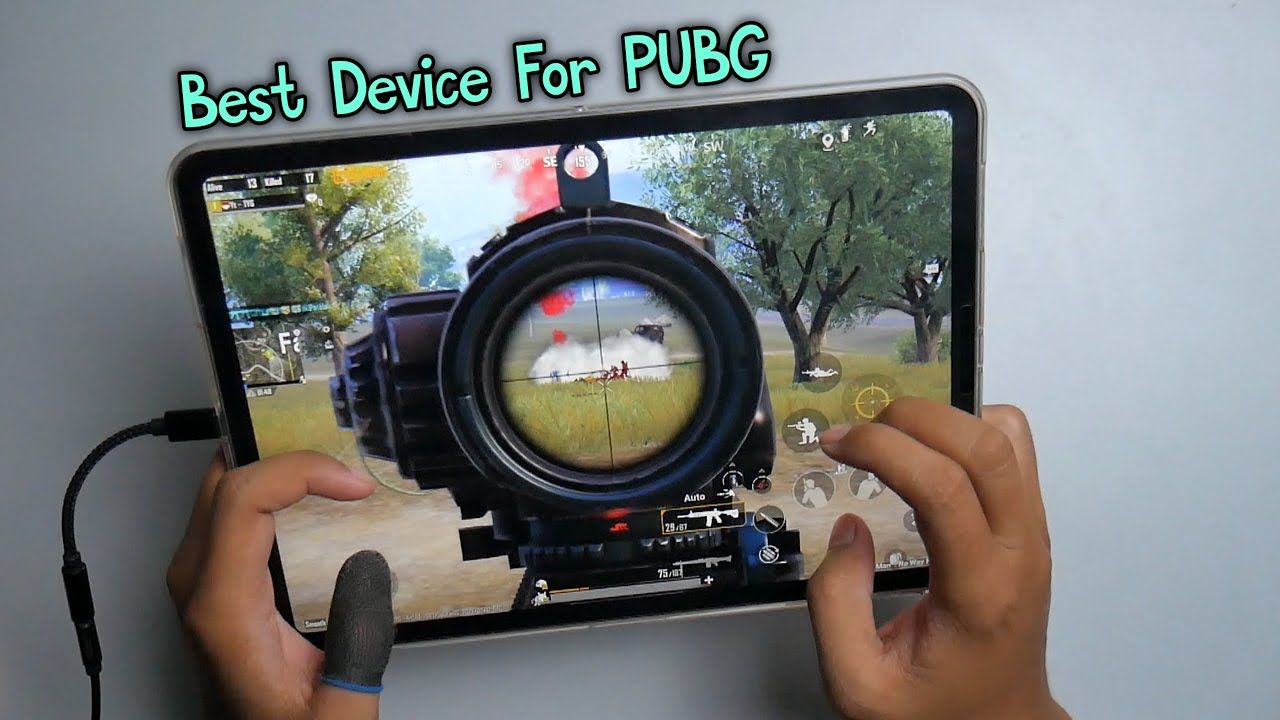
What the Patch Changed
The July 26 patch addressed severe frame-rate drops on M1-equipped iPad Pro models. A frame-rate repair can involve client scheduling, rendering, memory, device detection, thermal behavior, or game-specific optimization, but players should not invent a technical cause that the patch notice did not publish.
What can be tested is the outcome:
Does the device remain near the selected frame-rate target for longer?
Are major drops less frequent?
Does camera movement remain smooth during combat?
Does performance recover after landing, entering a city, or opening a scope?
Does the device maintain stability after it becomes warm?
Does the same map and graphics profile behave better than before?
A successful test needs before-and-after evidence or, when old evidence is unavailable, several consistent post-patch runs.
Confirm That the July 26 Patch Is Installed
Close PUBG MOBILE completely.
Open the App Store and check for an application update.
Launch the game and allow in-client resources to finish downloading.
Restart the application after the resource process completes.
Record the client version shown in settings or the login screen.
Confirm that the device is an iPad Pro with an M1 chip.
Avoid testing from a suspended session that remained open before July 26.
The patch may be delivered through the store, an in-client download, or both. A device that can enter the lobby has not necessarily finished optional map, audio, texture, or event resources.
Identify the Exact iPad Model
Open iPad Settings, then General, About, and record the model name and model number. Do not rely on screen size alone. Different iPad Pro generations can look similar while using different chips.
The announced target is the M1 iPad Pro. Reports from an M2 iPad Pro or iPad Air 5 are useful community evidence but belong in a separate issue report unless the official notice expands the scope.
Build a Repeatable Test
Variable | Keep it fixed |
|---|---|
Map and mode | Use the same map, perspective, and mode |
Graphics | Same quality, frame-rate option, anti-aliasing, and style |
Device power | Same charging or battery condition |
Temperature | Start both tests from a similar device temperature |
Network | Same Wi-Fi or connection route when possible |
Background apps | Close the same applications |
Recording | Either record both runs or neither |
Test duration | Use the same number of minutes |
A comparison is weak if one test uses a cool device in Training Ground and the other uses a hot device in a crowded ranked match.
Recommended Three-Stage Test
Stage 1: Training Ground Baseline
Use Training Ground to test camera rotation, weapon switching, sustained firing, scopes, vehicles, and repeated movement without match randomness. Run for at least ten minutes.
Watch for sudden frame pacing changes rather than only average smoothness. Move rapidly between open and object-dense areas.
Stage 2: Real Match Load
Play the same map and mode for two or three matches. Record performance during landing, dense compounds, smoke, vehicles, close combat, and late circles.
Do not judge the patch from one quiet match. A useful test includes the situations that previously triggered the severe drops.
Stage 3: Warm-Device Validation
Continue until the iPad reaches normal gaming temperature. Repeat the most demanding actions. If performance is good only when cold, the patch may have improved the bug while thermal limits still remain.
Use the Same Graphics Profile
Take screenshots of the complete Graphics and Audio page before testing. Record:
Graphics quality.
Frame-rate selection.
Anti-aliasing.
Auto-adjust graphics.
Style and brightness.
Death replay or highlight recording.
Resource quality options.
Any device-specific high-frame-rate toggle.
Turn off Auto-adjust Graphics during a controlled comparison if the game allows it, because automatic changes can make results difficult to interpret. Re-enable it later if it provides a better everyday experience.
Measuring Without a Built-In Counter
Even without a visible FPS counter, players can collect useful evidence.
Observe:
Consistency of camera rotation.
Delay between touch movement and camera response.
Scope animation smoothness.
Recoil tracking during sustained fire.
Vehicle steering responsiveness.
Duration and frequency of major stalls.
Whether sound continues normally during a visual drop.
Whether performance recovers after leaving a dense area.
A short screen recording can help, but recording itself consumes resources. Compare a recorded run with a non-recorded run before claiming the recorder has no effect.
Temperature and Charging
An iPad can reduce performance when temperature rises. Test the patch under realistic but controlled conditions.
Remove a heat-trapping case during diagnosis.
Avoid direct sunlight.
Do not charge from a high-heat position under a pillow or blanket.
Use the official or safe compatible charger.
Stop if the device displays a temperature warning.
Let the iPad cool before repeating a before-and-after test.
Charging can increase heat, but low battery and power-saving behavior can also affect performance. Record the battery state and whether the device was charging.
Storage and Resource Integrity
Keep enough free storage for updates, temporary files, and map resources. A nearly full device can cause installation and caching problems.
If the game still drops frames severely:
Finish all required downloads.
Use PUBG MOBILE's official repair function.
Restart the iPad.
Test one map with a complete resource package.
Avoid deleting and redownloading everything until the smaller repair test is complete.
Reinstallation is a final step, not the first. It consumes time and can erase useful evidence about whether the July 26 patch changed behavior.
Network Lag Is Not the Same as FPS Loss
Frame-rate loss affects visual smoothness and input presentation. Network lag affects server response.
Likely FPS problem:
Camera movement becomes choppy.
Interface animation stutters.
Local recoil and scope animation lose smoothness.
The issue can appear in Training Ground.
Likely network problem:
Enemies teleport or damage arrives late.
Doors and pickups respond slowly.
Ping rises or connection warnings appear.
The camera remains visually smooth.
Both can occur together. Test Training Ground and monitor connection indicators before assigning the cause.
Comparing Before and After July 26
If a pre-patch video exists, match its conditions:
Same device.
Same map or training route.
Same graphics.
Similar temperature.
Same recording method.
Similar connection.
Compare the frequency and duration of major drops rather than selecting one smooth moment. A patch can be successful even if the game does not hold the theoretical maximum every second. The announced problem was severe FPS loss, not a promise of perfect performance under every load.
When the Fix Appears Successful
The patch likely improved the device when several post-patch runs show:
Fewer severe drops.
Better stability after the iPad becomes warm.
Smoother camera movement in the same areas.
More consistent close-range combat.
Faster recovery after high-load moments.
No new crash or visual corruption.
Keep the successful settings recorded. Do not immediately raise every graphics option, because that creates a new performance test.
When the Problem Remains
If severe drops continue:
Confirm M1 model identity.
Confirm client and resource update completion.
Test a lower graphics profile.
Disable recording and overlays.
Cool the device.
Repair resources.
Compare another network.
Capture the exact trigger.
A continuing problem does not prove the patch was never installed. It may show that the account has another issue or that the announced fix is incomplete on a particular configuration.
Building a Useful Bug Report
Include:
iPad model and model number.
Confirmation that it uses M1.
iPadOS version.
PUBG MOBILE client version.
Region and player identifier.
Map, mode, and location.
Complete graphics settings.
Battery percentage and charging state.
Approximate device temperature condition.
Whether screen recording was active.
Connection type and ping behavior.
Reproduction steps.
Video showing the full lead-up, not only the final stutter.
Do not publish account passwords, private payment data, or recovery information.
Competitive Settings After the Fix
Do not maximize graphics merely because the severe bug improved. Competitive play benefits from stable frame pacing, readable enemies, manageable heat, and predictable touch response.
Start with the pre-patch stable profile. If the patch works, increase one visual setting at a time and repeat the same test. Stop when stability or temperature meaningfully worsens.
Account Spending and Performance
The July 26 performance fix does not change the value of UC, outfits, weapon finishes, or event draws. Confirm that the device is stable before making a purchase based on returning to competitive play.
Players who already intend to purchase UC can visit Topuplist and the PUBG MOBILE top-up page. Verify the player identifier, region, product amount, and payment information before checkout.
Score the Patch Across Repeatable Scenarios
Use a simple zero-to-three score after each run. Zero means the severe drop still makes the scene difficult to control. One means the scene improves briefly but remains unreliable. Two means the frame rate has occasional visible dips without disrupting aiming. Three means the same scene remains consistently playable. Score landing, dense compounds, smoke, vehicle travel, scoped combat, and a warm-device late circle separately.
This method prevents one excellent Training Ground result from hiding a poor real-match result. It also makes later patches easier to compare. Keep the raw notes, because an average score alone can hide one critical failure. If smoke remains a zero while all other scenes reach two or three, the report should identify smoke rendering rather than claim that the entire game is unchanged.
Repeat the matrix without screen recording at least once. If recording changes a result by a full point, preserve both tests and mention the difference. A useful patch verdict is based on several scenes, repeated conditions, and the device after normal warming, not on a single lobby impression.