

Mico Apple Pay or Google Pay Not Working? How to Fix Payment & Top-Up Errors
If Apple Pay or Google Pay is not working on Mico, you are not the only user facing this issue. Many Mico users run into payment errors when trying to buy Mico Coins, recharge their account, send gifts, unlock premium features, or purchase live-streaming rewards. The error may appear as “Payment Declined,” “Transaction Failed,” “Payment Method Unavailable,” “Purchase Could Not Be Completed,” or a top-up page that keeps loading without finishing the order.
In most cases, Mico payment problems are caused by billing verification issues, region mismatch, expired cards, insufficient balance, bank security checks, Google Play or App Store errors, VPN conflicts, or temporary server delays. Sometimes the payment succeeds but the Coins do not appear immediately because the order is still syncing between the payment platform and Mico.
This full guide explains why Mico Apple Pay or Google Pay fails, how to fix iPhone and Android payment errors, what to do if you were charged but did not receive Mico Coins, and how to avoid payment problems in future top-ups.
If your usual payment method keeps failing, you can also use Topuplist’s official Mico top-up page as an alternative recharge option with order tracking and customer support.
For platform-specific billing help, always check official resources such as Apple Billing Support and Google Play Help.
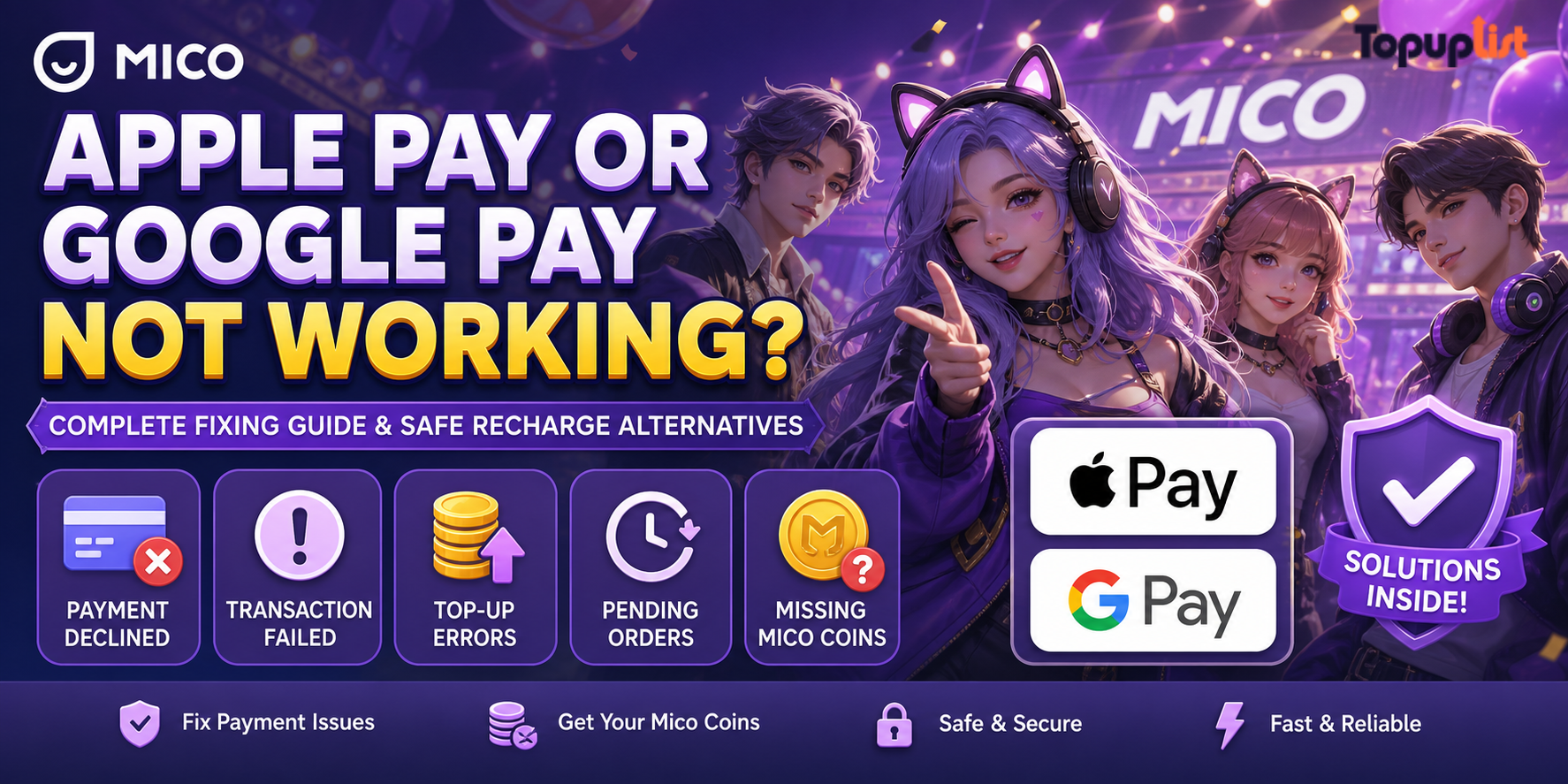
Mico Apple Pay or Google Pay Not Working: What This Error Means
When Apple Pay or Google Pay does not work on Mico, the payment process is usually blocked before Mico can confirm the top-up. The issue may happen before payment, during payment, or after the payment appears successful.
Common Mico payment error situations include:
Apple Pay shows Payment Declined
Google Pay shows Transaction Failed
The Mico top-up page keeps loading
Coins packages do not display
Payment window closes automatically
Payment succeeds but Mico Coins do not arrive
Order stays pending in App Store or Google Play
Bank card is charged but Mico balance does not update
These errors usually come from one of five areas:
Payment method issue
App Store or Google Play billing issue
Bank card or wallet verification problem
Mico server or order sync delay
Region restriction or VPN mismatch
Before trying random fixes, first identify whether your issue is a payment failure, a pending order, a completed payment with missing Coins, or a region/payment method restriction.
Why Apple Pay or Google Pay Fails on Mico
Mico payment errors can feel confusing because the error message is often too general. The same “payment failed” message can be caused by your bank, mobile wallet, app store profile, Mico account, or network environment.
Common reasons include:
Apple ID or Google Play country does not match the payment method country
Card is expired, has insufficient balance, or has an incorrect billing address
Bank blocks digital entertainment or social app purchases
Google Play payment profile is incomplete
Apple payment method requires verification
VPN or proxy causes region mismatch
Mico payment gateway is temporarily busy
Too many failed attempts trigger fraud checks
Google Play gift card region does not match account country
If the same error appears repeatedly, stop trying the same payment method again and again. Multiple failed attempts can trigger stricter risk controls from your bank, Apple, Google, or payment processor.
How to Fix Mico Apple Pay Not Working on iPhone
If you use Mico on iPhone or iPad, Apple Pay issues are usually connected to Apple ID billing, card verification, App Store region, or bank approval.
Step 1: Check Apple ID Payment & Shipping
Go to:
Settings > Apple ID > Payment & Shipping
Confirm:
Your payment method is active
Your card has not expired
Your billing address is correct
Your Apple ID country matches your card billing country
Your payment method does not need verification
Your card supports App Store purchases
If Apple asks you to verify billing details, complete that first before trying to top up on Mico again.
Step 2: Remove and re-add your card
If Apple Pay keeps declining your Mico payment, remove the card and add it again.
Steps:
Open
SettingsTap your Apple ID
Go to
Payment & ShippingRemove the current card
Add the card again or use another card
Restart your iPhone
Try a small Mico Coins package first
This refreshes Apple Pay verification and often fixes failed payment authentication.
Step 3: Check card balance and billing details
Make sure your card has enough available balance and that the billing address matches the one registered with your bank. Even a small mismatch can cause Apple Pay to reject the payment.
Step 4: Contact your bank
Some banks block social app or live-streaming recharge transactions because they look like unusual digital purchases. If your card works elsewhere but fails on Mico, contact your bank and ask whether the App Store transaction was blocked.
Tell the bank:
You are making an in-app purchase
The charge is from Apple / App Store
The purchase is for Mico Coins
You want the transaction approved
Step 5: Confirm Apple ID region
If your Apple ID is set to one country but your card is issued in another country, Apple may block the transaction.
Common examples:
Apple ID country is United States, but card is issued elsewhere
You moved countries but did not update Apple ID billing
Your App Store region does not support the payment method
You can manage account details through Apple ID account settings or Apple Billing Support.
Step 6: Update iOS and Mico
Payment windows may fail if your app or operating system is outdated. Update:
iOS / iPadOS
Mico app
App Store payment settings
Then restart your phone and try again.
Step 7: Disable VPN or proxy
VPNs can trigger region mismatch errors between your IP address, Apple ID country, and billing country. Turn off VPN before making a Mico payment.
Step 8: Check Apple purchase history if charged
If Apple shows the purchase as completed but Mico Coins did not arrive, save the receipt and contact Mico support. If the purchase is pending, wait for Apple to finish processing first.
How to Fix Mico Google Pay Not Working on Android
If you use Mico on Android, Google Pay or Google Play payment errors usually come from payment profile issues, Google Play country mismatch, Play Store cache, card verification, or gift card restrictions.
Step 1: Check Google Play payment methods
Open:
Google Play Store > Profile Icon > Payments & subscriptions > Payment methods
Confirm:
Your card is active
Your billing address is correct
Your card has enough balance
Your payment method is supported in your country
No verification warning is shown
Step 2: Confirm Google Play country
Google Play country is very important. If your Google account country does not match your card, wallet, or gift card region, payment may fail.
Common examples:
Google Play country differs from your bank card country
Gift card was purchased for another country
You recently moved countries and Google Play billing has not updated
Your payment profile country is different from your current location
Google provides official guidance through its Google Play payment troubleshooting page.
Step 3: Clear Google Play Store cache
Cache problems can break purchase windows or prevent payment confirmation.
Steps:
Open
SettingsGo to
AppsSelect
Google Play StoreTap
StorageTap
Clear CacheRestart your phone
Open Mico and try again
You can also clear cache for:
Google Play Services
Google Play Games
Mico
Step 4: Remove and re-add your payment method
If Google Pay keeps showing transaction failed, remove the payment method and add it again. This refreshes billing verification.
Step 5: Avoid mismatched Google Play gift cards
Google Play gift cards are country-specific. A gift card purchased for one country usually cannot be used on an account registered in another country.
If your gift card does not work for Mico, check whether the gift card country matches your Google Play country.
Step 6: Disable VPN before payment
Google Play payments are sensitive to region mismatch. Turn off VPN or proxy tools before topping up Mico Coins.
Step 7: Check Google Play order history
If you attempted payment, check the order status.
If the order is completed but Coins are missing, save the GPA order number and contact Mico support.
What to Do If Payment Succeeded But Mico Coins Did Not Arrive
Sometimes Apple Pay or Google Pay works, but Mico Coins do not arrive immediately. This is usually a delivery or order sync issue rather than a failed payment.
Players often search:
Mico charged but no coinsMico payment successful but coins not receivedMico top up not receivedMico coins missing after payment
Step-by-step fix
Wait 10–30 minutes
Some top-ups need extra time to sync between Apple, Google, bank, and Mico.Restart Mico
Close the app completely and reopen it.Refresh your Coins balance
Check your wallet, profile balance, purchase history, and VIP or gift package pages.Check order status
Look at Apple purchase history, Google Play order history, bank statement, or third-party order page.Save proof of payment
Take screenshots of the receipt, order number, amount paid, payment time, and Mico balance.Contact Mico support or platform support
If paid through Apple or Google, check the platform receipt first. If using a third-party platform, contact that platform with the order ID.Avoid immediate chargeback
Chargebacks can create account risks or future payment blocks. Use normal support first.
Support ticket information
Support ticket template
You can use this message:
Hello Mico Support,
I completed a Mico Coins top-up, but the Coins have not been delivered to my account.
Mico ID / UID: [Your ID]
Payment Method: [Apple Pay / Google Pay / Other]
Order Number: [Order ID]
Purchase Time: [Date and Time]
Amount Paid: [Amount]
Missing Item: [Coins / VIP / Package]
I have attached my payment receipt and a screenshot of my current Coins balance. Please help check the missing top-up. Thank you.
Safe Alternative Top-Up Methods and Prevention Tips
If Apple Pay or Google Pay keeps failing, you may need another safe way to buy Mico Coins. The most important thing is choosing a method with clear order records, reliable customer support, and secure payment.
Safe top-up habits
Before topping up Mico Coins:
Use a stable network
Turn off VPN during payment
Keep account region, store region, and payment region consistent
Do not repeat orders while one is pending
Save every receipt
Check Mico ID before third-party recharge
Avoid suspiciously cheap offers
Never share your Mico password
Official in-app payment
If Apple Pay or Google Pay works normally in your region, official in-app purchase is usually the simplest option.
Third-party top-up platforms
Third-party recharge can be useful when:
Apple Pay is declined
Google Pay fails
Your card is not supported
Top-up is not available in your region
You want another payment option
However, choose carefully. A safer platform should provide:
clear product pages
order tracking
customer support
secure payment options
no password requirement
clear refund or delivery policy
If you need an alternative Mico recharge option, Topuplist’s official Mico top-up page provides a dedicated Mico recharge page with order records and support access.
FAQ
Why is Mico Apple Pay declined?
Mico Apple Pay may be declined because your card requires verification, your billing address is wrong, your Apple ID region does not match your card country, your bank blocked the transaction, or your card has insufficient balance.
Why does Google Pay fail on Mico?
Google Pay may fail because your Google Play payment profile is incomplete, your card was declined, your Google Play country does not match your payment method, or Play Store cache is causing billing errors.
Can VPN cause Mico payment errors?
Yes. VPNs can create region mismatch between your IP address, app store region, payment profile, and card country. Turn off VPN before making payments.
What if I was charged but did not receive Mico Coins?
Wait 10–30 minutes, restart Mico, check your order history, save your receipt, and contact Mico support or the recharge platform with your Mico ID and order number.
Is third-party Mico top-up safe?
It can be safe if you use a reliable platform with secure payment, order tracking, and customer support. Avoid services that ask for your password or offer prices that seem too low.
Can I refund a failed Mico top-up?
Refund rules depend on your payment method. Apple, Google, banks, and third-party platforms have different policies. Contact support first before starting a chargeback.
Final Thoughts
If Mico Apple Pay or Google Pay is not working, the issue is usually fixable. Start by checking your payment method, billing profile, account region, network connection, and order status. If the payment succeeded but Mico Coins did not arrive, save your receipt and contact support instead of repeating the purchase or rushing into a chargeback.
For future top-ups, use stable internet, avoid VPN during payment, keep regions consistent, and save every order record. If mobile payment methods continue to fail, Topuplist’s Mico top-up page is a convenient alternative for buying Mico Coins with order tracking and support access.
For official billing assistance, refer to Apple Billing Support and Google Play Help.