


Foundation: Galactic Frontier Top Up Not Working? Errors and Fixes
Why your Foundation: Galactic Frontier top up is not working and how to fix it — payment declines, crashes during redemption, missing Credits, and update errors.
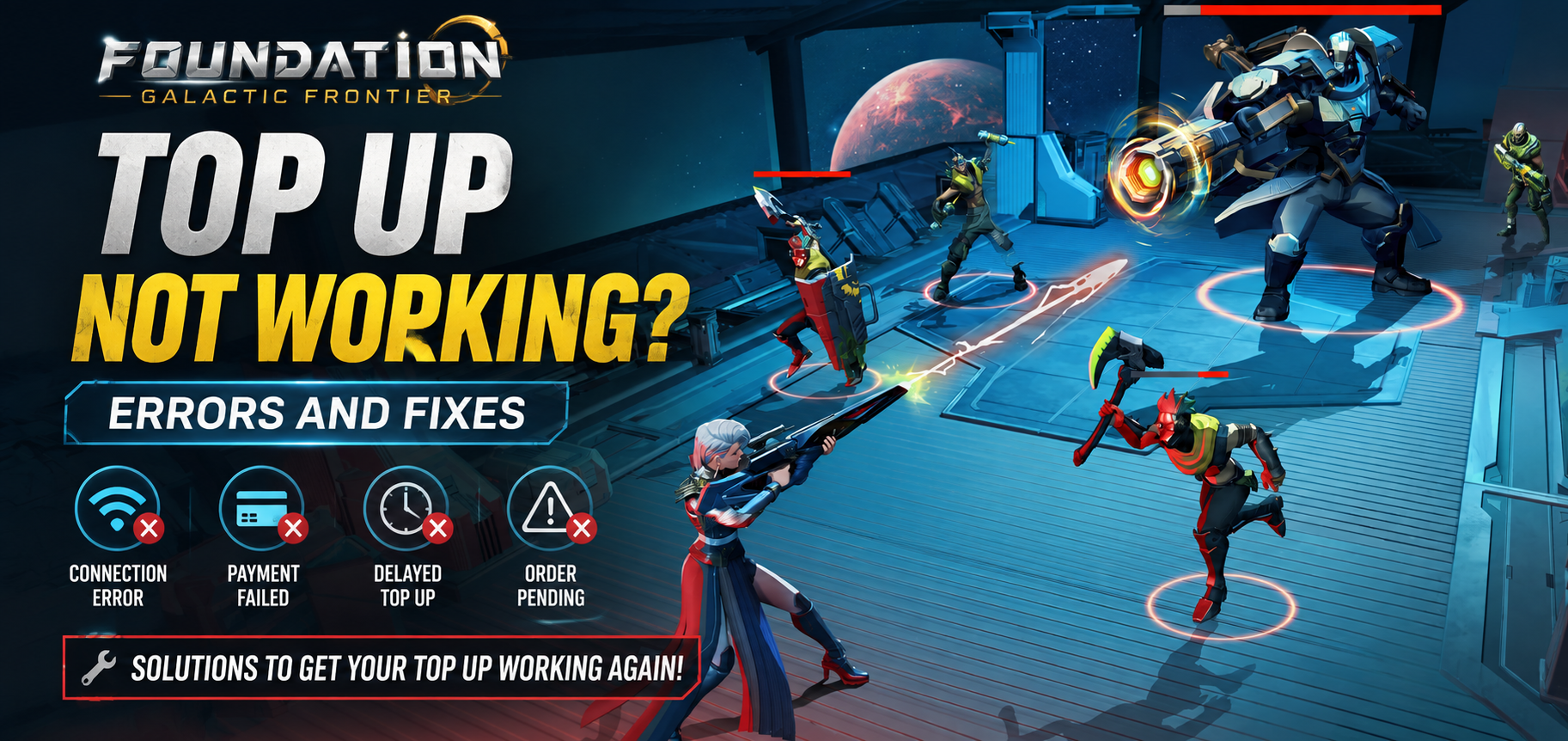
Why a Top Up Can Fail in Foundation: Galactic Frontier
Foundation: Galactic Frontier is a free-to-play sci-fi strategy game from FunPlus International AG, set in Isaac Asimov's Foundation universe. The game's top-up system delivers Credits to your account through your UID, and most purchases complete without any trouble. When a top up fails, the cause usually falls into one of a few categories: a payment problem, an account detail error, a delivery delay, or a technical issue on the device. Whatever the cause, the fixes below work whether you paid in the game store or through an online Foundation: Galactic Frontier top-up service.
Because the game is still relatively new — it launched in October 2025 — some players have also reported stability issues that can interfere with purchases. App store reviews describe the game "crashing constantly," "freezing oftentimes," and disconnecting with "network unstable" messages, and several reviewers note that these problems became worse after updates. When the game itself is unstable, the top-up flow can fail even when your payment went through. This guide walks through each failure type, what causes it, and the fix that actually works.
Common Failure Scenarios by Purchase Route
Where you bought the Credits changes how the failure behaves and how you fix it. The three routes players use most are the in-game store, the publisher's official purchase center, and direct top-up services, and each has a typical failure signature:
Purchase Route | Typical Failure | Where to Fix It |
In-game store (mobile) | Store payment blocked by app store | Check Apple/Google payment settings |
Official purchase center | Login or UID entry error | Re-enter UID, check login method |
Direct top-up service | Delivery delay or wrong server | Order history, service support |
Redeem code | Code expired or misspelled | Re-check code, copy exactly |
Whatever route you used, the fix sequence is the same: confirm the payment actually happened, confirm the delivery target (UID and server), then check for a technical blocker on your device.
Payment Declined or Blocked — What to Check
If your payment is declined, the problem is almost always on the payment side, not the game side. Start with the basics:
Check the card or wallet — insufficient balance, expired cards, and daily limits are the most common causes of declined payments.
Check the payment processor — some banks block transactions to game stores or foreign merchants. Contact your bank if the payment is declined repeatedly.
Check regional restrictions — not every payment method works in every region. If you are buying through a top-up service, make sure the payment method is accepted for your currency.
Try another method — switching from card to PayPal, or to a different card, resolves many "payment failed" errors.
When you pay through the in-game store on mobile, the transaction goes through the Apple App Store or Google Play, and those stores have their own payment requirements. If your app store payment fails, check your payment settings in the store itself before retrying the purchase in the game.
Payment Method and Card Issues
For top-ups placed with a top-up service, the same rules apply. If a card payment fails, confirm that your billing address matches what the bank has on file, and that your card allows international or online transactions. Some cards require 3-D Secure verification, so keep your phone nearby when you confirm the payment. A failed payment does not charge your account, so retrying with a working method is safe.
Game Crashes or Freezes During Redemption
The most distinctive failure pattern in Foundation: Galactic Frontier is the crash during redemption. Players have reported that the game freezes or force-closes "when I'm trying to upgrade things," and in some cases "it crashes 3 times before I can order an upgrade." If the game crashes while you are confirming a purchase or claiming a redeemed pack, the payment may have completed even though the game closed.
What to do when this happens:
Do not immediately try to buy the same pack again. You may already own it.
Restart the game and check your Credits balance and inbox first.
If the Credits are there, the order completed successfully — nothing more to do.
If the Credits are missing but the payment went through, keep your receipt and contact support.
Device-specific tips also help: players on high-end devices have reported stuttering even on low graphics settings, and several reviewers fixed persistent freezes by lowering graphics, clearing the app cache, and making sure the operating system was up to date. The game is around 2.8 GB on iOS, so storage pressure is a real factor — if the device is low on space, close other apps and free up storage before retrying a purchase.
How to Retry a Redemption Safely
If a redemption flow (for example, a Self-TopUp style flow where you log in and claim a pack inside the game store) is interrupted by a crash, do not log in from another device while the order is processing, and do not close the store interface prematurely. The game's published top-up instructions warn that redeeming a package requires waiting time and that you should not close the interface or log in from another location during the redemption process. After a crash, give the order a few minutes to settle, then restart and check your inbox before retrying.
The Self-TopUp Redemption Flow Explained
Some top-up services use a model called Self-TopUp: after you purchase a gift pack on the service site, you log into your game account through the service's flow, enter the in-game store, confirm the pack you bought, and claim it there. Your login information is automatically cleared after you exit the Self-TopUp session. This model is fast, but it creates two specific failure points: the claim step must be completed without interruption, and the game client must be stable during the claim. If the game crashes mid-claim, the order may still be pending on the service side, so check the order status before you attempt the claim again. Services that follow this model publish their instructions clearly on the Foundation: Galactic Frontier top-up page before you pay, so read the delivery method before ordering.
Credits Paid but Not Credited to Your Account
This is the most stressful failure type: the payment succeeded, but the Credits are not in your balance. Before contacting anyone, work through this sequence:
Wrong UID, Server, or Login Details
Check the inbox — some deliveries arrive as mail with a claim button, not as an instant balance change.
Check all currencies — the pack may deliver Platinum Credits instead of Credits, so look at both balances.
Check the right account — confirm you are logged into the same UID and server you provided with the order. If you play on multiple servers, the Credits may have landed on the other one.
Wait out the delivery window — direct top-up delivery can take minutes, and delays are longer during events.
Restart the app — a full restart refreshes the balance display, which is enough to fix "Credits not showing" in many cases.
If none of these work, the order is genuinely stuck, and the fix is a support ticket with evidence (see below).
A Note on First-Purchase Bonus Delays
If this is your first top-up, remember that the first purchase grants double Credits based on in-game rules. The bonus is applied according to those rules, and on rare occasions the bonus portion lands slightly after the base amount, which makes it look like only half the Credits arrived. Check your balance again a few minutes later before assuming the delivery was short. If the bonus never appears, include the first-purchase information and the store's stated bonus terms in your support ticket — this is a known, documented mechanic rather than a random failure.
Check Your Order Status First
Every legitimate top-up service gives you an order number or order history. Before you report a missing delivery, open your order history on the service page and confirm the order status: did it succeed, is it processing, or did it fail? An order that shows "processing" just needs time. An order that shows "completed" means the Credits were delivered — and the issue is either the wrong account or a display problem in the game. This single check saves hours of back-and-forth.
Update and Installation Errors That Block Top-Up
Players have also reported update and installation failures with Foundation: Galactic Frontier. When an update fails to install, the game may refuse to open or may run an older version where the store behaves incorrectly. The usual fixes:
Free up storage — the game is around 2.8 GB on iOS and similar on Android, and updates need extra free space to unpack.
Update through the store — install the latest version from the Apple App Store or Google Play before opening the store in-game.
Clear the cache — Android players have reported that clearing the app cache fixes freezes and glitches.
Reinstall as a last resort — back up your account binding first (Settings → Account), then uninstall and reinstall. Your progress is safe if the account is bound.
An updated client fixes most store and payment interface bugs, so always rule this out before assuming the top-up system is broken.
Regional Pricing and Currency Display Issues
One more common source of confusion is currency display. Because of regional pricing, the same pack can be priced differently in different countries, and in some top-up flows the in-game store displays prices in USD by default. If the price you see looks different from what you expected, check the currency setting on the store or service page before you pay. Switching the display currency to USD is a standard way to compare the price of a pack across regions, and most published top-up instructions mention this step explicitly. This is not a bug — it is how app store pricing works — but it explains many "why is it showing a different price" questions from players.
Quick Fix Checklist
For a quick reference, the full list of available packs and delivery details is on the Foundation: Galactic Frontier top-up page.
Symptom | Most Likely Cause | Fix |
Payment declined | Card limits or bank block | Check card, try another method |
Crash during purchase | Game stability issue | Restart, check balance, do not rebuy |
Credits missing after payment | Wrong server or inbox | Check inbox, both currencies, all servers |
Store not opening after update | Failed update install | Update or reinstall the client |
Delivery stuck at "processing" | Event-period delay | Wait, then check order history |
Order shows "completed" but no Credits | Wrong account or display | Restart app, verify UID, contact support |
When to Contact Support (and What to Prepare)
If the quick fixes above do not resolve the issue, it is time to contact support. For a top-up placed with a service, contact the service's support first with your order number — the order history and payment receipt are the fastest way to a resolution. For issues inside the game itself, the game's customer service is available through the in-game support icon, where you fill in your UID, the time the issue occurred, a brief description, and any relevant screenshots, plus your device info.
FunPlus, the developer, also lists support contact details on its official website, and the game's store listing provides a dedicated support email. Prepare these four things before you write: your UID (tap the avatar in the top left corner), the order number from the service, a screenshot of the payment receipt, and a screenshot of the error or missing balance. With those four pieces of evidence, most top-up problems are resolved within a day.
If your order was placed with a top-up service, the first point of contact is that service's own support desk — it holds the order record and can re-deliver or investigate faster than anyone else. When you order through Topuplist, the support team works from your order number and the UID you provided, and because the delivery is direct UID top-up, most issues are traced to a wrong server or a delayed payment confirmation rather than a lost order. Keep the conversation in one thread and attach the same four pieces of evidence you would send to the game's support.
Keep These Screenshots as Evidence
Screenshots are the single most important part of any top-up dispute. Capture: your profile showing the UID, the payment confirmation (including the amount and order number), and the game screen showing the missing Credits or the error message. Store them together in one place so you can attach them instantly. Providers and support teams can verify deliveries with an order number, but the receipt is what proves your payment, and the UID screenshot is what proves the target account.
Frequently Asked Questions
Why is my Foundation: Galactic Frontier top up not working? The most common causes are payment declines, game crashes during redemption, wrong server selection, and failed game updates. Work through the quick fix checklist in this guide first.
I paid but received no Credits. What should I do? Check your inbox, check both Credit and Platinum Credit balances, confirm you are on the same server you provided, and restart the app. If the Credits still do not appear, contact support with your order number and receipt.
The game crashes when I try to buy Credits. Is my payment safe? A crash does not mean the payment failed. Restart the game and check your balance before buying again. If the payment went through but the Credits are missing, keep the receipt and contact support.
Can I retry a failed payment without being charged twice? A failed payment does not charge your account. If a payment succeeded, the order appears in your order history — check it before retrying, so you do not buy the same pack twice.
Why does the store show an error after an update? A failed update can break the store interface. Free up storage, install the latest version from the app store, and clear the cache. Reinstalling after binding your account is the last-resort fix.
What details does support need to fix my top-up? Your UID, the order number, a payment receipt screenshot, and a screenshot of the error or missing balance. Attach all four and the issue can usually be resolved within a day.
Why is the price shown in a different currency? Regional pricing means the same pack costs differently in different countries, and some top-up flows display USD by default. Switch the display currency to USD to compare prices, then confirm the final amount before paying.
The game shows "network unstable" during payment. What should I do? Network errors can interrupt the claim step of a top-up. Check your connection, restart the game, and verify the order status before retrying — do not pay for the same pack twice.
Do I need to bind my account before topping up? It is strongly recommended. Binding your account with a phone number or email through Settings → Account protects your progress and makes delivery and support faster if anything goes wrong.