


Arena Breakout: How to Fix PC Top-Up & Payment Glitches
Introduction: The Frustrating PC Store Freeze in Arena Breakout: Infinite
You are standing in the tactical lobby of Arena Breakout: Infinite (ABI). Your loadout is meticulously organized, your weapons are modified via the gunsmith system, and you are ready to venture back into the high-stakes extraction zones. However, your stash spaces are completely full, or your standard secure case has expired. You decide it is time to purchase a fresh stack of premium Bonds to unlock an expanded secure case or secure vital resource bundles.
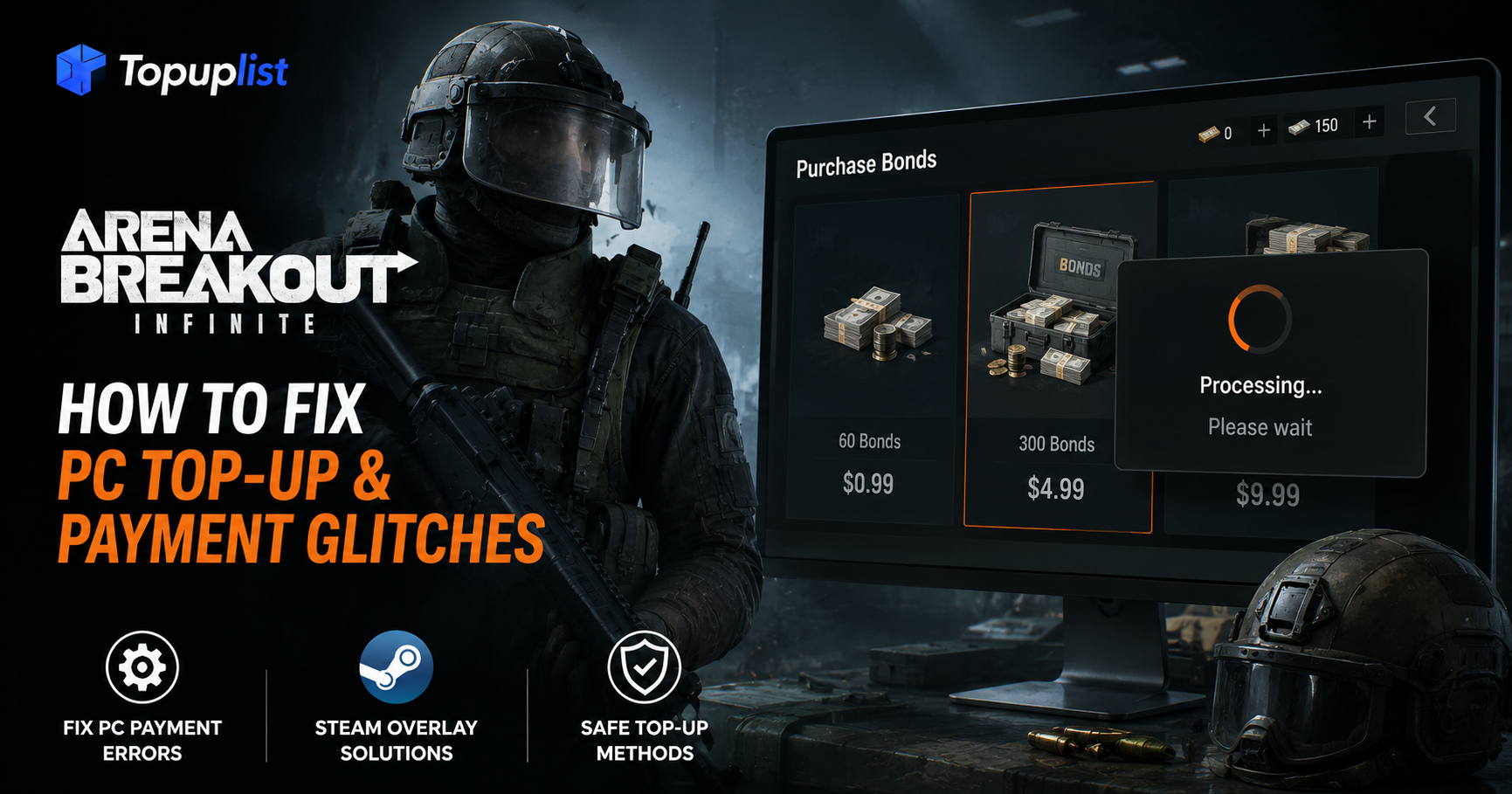
You click the payment tier button, expecting a smooth checkout window. Instead, the local UI locks up entirely. You are staring at an infinite loading wheel, a completely black or white pop-up window, or a system crash that drops you right back to your desktop layout.
In a casual arcade shooter, a store checkout error is merely a minor annoyance. But in the cutthroat economy of Arena Breakout: Infinite, being locked out of transaction systems is a major tactical bottleneck. Missing a high-tier secure container configuration means you are directly risking your most valuable extracted loot, expensive ammunition, and hard-earned Koen in the very next raid.
When your billing flow collapses under these bugs, it is natural to search for solutions online with terms like “arena breakout infinite pc top up error” or “abi steam store purchase loading forever.” Fortunately, these payment freezes are rarely linked to problems with your banking accounts. They are caused by misconfigured background application layers between your game software, system firewalls, and PC launcher platforms. By following this comprehensive troubleshooting guide, you can eliminate these digital barriers or deploy secure alternative workarounds to get your wallet funded instantly.
Technical Solution 1: Resolving the Steam Overlay Payment Loop
If you launched Arena Breakout: Infinite through the Steam client framework, any attempt to process an in-game purchase triggers a background software handshake. The game executable does not process your credit card directly; instead, it passes a script call to the Steam In-Game Overlay, which handles your digital Steam Wallet checkout module. If this background overlay system is blocked, stalled, or toggled off, your checkout process falls into an infinite loading loop.
Enabling the Overlay Architecture
To restore your local Steam client checkout capabilities, you must verify that the overlay layer is active both within global client controls and local application settings:
Fully close Arena Breakout: Infinite and exit all active gameplay processes.
Open your desktop Steam client software wrapper.
Navigate to the top-left corner menu and click Steam > Settings > In-Game.
Locate the toggle marked "Enable the Steam Overlay while in-game" and ensure it is switched to the ON position.
Next, navigate to your personal Steam Library menu.
Right-click on Arena Breakout: Infinite and select Properties.
Under the General tab, double-check that the option "Enable the Steam Overlay while in-game" is toggled on specifically for this title.
Flushing Stuck Local Payment Tokens
If your overlay configuration is turned on but still serves up a frozen blank screen, your local desktop browser data cache may be hoarding corrupted payment session cookies. You can clear this cache by following standard technical maintenance paths monitored by digital distribution communities like the Valve Steam Support Center:
Once you execute this command, restart your Steam application wrapper to force a fresh, clean cryptographic handshake with regional billing networks during your next purchase attempt.
Technical Solution 2: Fixing Admin Rights and Launcher Firewall Blocks
If you are bypassed the Steam environment entirely and are playing on the standalone Arena Breakout: Infinite PC desktop launcher, store loading errors typically stem from a different root cause. The proprietary standalone game client utilizes a built-in browser rendering layer (often using Chromium components) to display payment processors like Stripe, PayPal, or credit card input fields. If your Windows operating system withholds vital deployment permissions, or if your local antivirus software views the external data handshake as a suspicious connection, the payment screen will immediately load as a blank black window.
Granting Global Administrator Permissions
Providing the standalone game launcher with complete administrative status ensures its web components can securely open external browser links and write temporary session data without getting intercepted by local system controls.
Locate the primary Arena Breakout: Infinite Launcher executable shortcut icon on your Windows desktop interface.
Right-click the application icon and choose Properties from the context menu.
Navigate to the top options row and select the Compatibility tab.
Locate the checkbox option labeled "Run this program as an administrator" and make sure it is checked.
Click Apply, then hit OK to lock in your system changes
Whitelisting ABI Through Windows Defender Firewall
If your application still blocks connections after receiving admin privileges, your network firewall may be blocking the game's outgoing financial queries. You must manually add an exception rule for the core executable processes:
The Regional Trap: Fixing the "Please Top Up on Your Registered Platform" Block
One of the most complex errors a tactical operator can face is the infamous restriction alert: "Transaction Declined. Please top up on your registered platform." This error typically targets cross-platform players who originally birthed their profiles within the mobile version of Arena Breakout on iOS or Android devices before migrating over to the next-gen PC release, Arena Breakout: Infinite. Alternatively, it impacts players who altered their network region using proxy configurations during initial deployment registration to access early alpha testing or region-locked bundles.
This restriction is triggered by rigid digital revenue-sharing contracts established between international publishers and mobile marketplace networks. If your user profile was created inside the Apple App Store or Google Play store ecosystem, the billing core locks your profile to that specific marketplace layer to guarantee those stores receive their standard platform revenue cuts. Consequently, when you attempt a direct checkout on a standalone PC build using a different card processing network, the system blocks the payment to avoid contract conflicts.
Having to shut down your PC, boot up a mobile phone or emulator, and navigate external mobile stores just to quickly re-supply an active tactical raid loadout is a slow and tedious process.
The Ultimate Workaround: Bypassing PC Store Glitches via Secure UID Web Top-Ups
If you do not want to spend your evening tweaking Windows administrative parameters, adjusting complicated firewall exceptions, or dealing with tedious mobile platform lockouts, you can utilize an alternative billing route. It is important to remember that local transaction errors are isolated bottlenecks targeting your local phone client or local PC client software layer. They do not block external database network injections.
By processing your purchase through an authorized external web recharge network, you bypass your local client software completely. External web platforms utilize enterprise-level Business-to-Business (B2B) application programming interfaces (APIs) directly linked to the publisher’s database. The web system simply verifies your numerical ID tag and credits your account instantly.
🎒 Lock in Your Secure Cases Instantly—Top Up Arena Breakout Bonds on Topuplist!
Don't let buggy Steam overlays, launcher black screens, or cross-platform registration errors stand between you and your tactical gear. When you need an immediate, 100% official payment channel to secure your Bonds before the next high-stakes raid, rely on Topuplist.
⚡ Direct API Delivery Speed: Your Bonds land in your player vault within seconds via official automated web delivery routes, bypassing all local PC launcher blocks.
🔒 100% Secure UID-Only Orders: Your data privacy is our top priority. We operate on a strict UID-only system—we only need your public Player ID. We never ask for passwords or Steam accounts.
🛡️ Zero Risk of Penalties: Every transaction is processed through fully authorized, secure banking channels, guaranteeing complete protection against account bans or currency confiscations.
👉 Top Up Your Arena Breakout Bonds Safely on Topuplist Now!
To safeguard your gaming profile and hard-earned cash moving forward, always evaluate the structural differences between secure web frameworks and unauthorized black market代充 traps:
How to Correctly Locate and Copy Your Arena Breakout Player ID
To ensure your web top-up executes flawlessly without any manual delivery delays, you must copy your exact numerical database record. Follow these simple steps to retrieve your UID within the game:
Launch Arena Breakout: Infinite on your PC or mobile device.
Navigate to the main lobby interface and tap your Profile Avatar located in the upper-left corner of the screen.
In the personal information overview panel that appears, look directly beneath your customizable username (In-Game Name).
You will see a string labeled "Player ID:" followed by a unique multi-digit sequence of numbers.
Click the integrated "Copy" icon sitting right next to the number sequence to save it to your clipboard. You can now paste it cleanly into Topuplist's checkout page for an instant, secure bond delivery.
Make sure to always keep your official transaction records organized. You can easily view and track your purchase history through official marketplace web hubs like the Google Store Wallet Center to keep your financial logs secure. Remember the golden rule of online gaming security: Legitimate, authorized third-party top-up networks will only ever request your public Player ID. Keep your credentials safe, steer clear of sketchy discount sellers, and protect your loot.
Frequently Asked Questions (FAQ)
Q1: Can I use Bonds purchased for Arena Breakout Mobile on Arena Breakout: Infinite (PC)?
Answer: No. While Arena Breakout (Mobile) and Arena Breakout: Infinite (PC) share similar core tactical design elements and branding assets under the Level Infinite umbrella, they operate on completely independent database structures and separate game servers. Premium currency balances, safe items, and vault weapons do not sync across different platforms. Make sure you select the correct platform option on your top-up page before completing your checkout.
Q2: Why do unauthorized low-cost "discount sellers" cause players to lose their Koen?
Answer: Shady sellers on private forums or unverified marketplaces use stolen credit cards or exploit regional payment loopholes to offer absurdly cheap rates. Once the true cardholder files a fraud report, the bank executes an automatic chargeback clawback. The game's anti-cheat system detects the fraud, revokes the bonds, and forcefully confiscates an equivalent value of Koen directly from your stash. If your stash value is insufficient to cover the deficit, your account will face a severe negative currency penalty or an immediate permanent ban.
Q3: Will fixing my Steam Web Browser Cache delete my customized Gunsmith loadout blueprints?
Answer: No. Clearing your local Steam browser cache or deleting temporary web data only flushes temporary payment session cookies, internet image logs, and outdated transaction tracking scripts. All of your core gameplay progression, custom gunsmith weapon blueprints, unlocked cosmetics, and stash contents are safely stored on secure cloud database servers, completely unaffected by this local cleanup.
Q4: What should I do if my credit card is charged but my Bonds haven't arrived in my stash?
Answer: This issue is typically caused by a brief network lag between your bank's payment gateway and the game's accounting server during peak raid hours. First, log out of your profile, restart your PC launcher client, and log back in to force a fresh profile refresh. If your balance hasn't updated within 15 to 30 minutes, retrieve your official digital receipt from your email or bank statement and submit a direct text ticket to the game's support center for manual delivery validation.
Q5: Do I need to share my Steam account password with Topuplist to clear a payment error?
Answer: Absolutely not. Topuplist integrates directly with the publisher's external B2B developer API pipelines. This allows our servers to verify your profile's existence and deliver your purchased Bonds using nothing but your public, numerical Player ID. You should never share your Steam login credentials, standalone launcher passwords, or temporary two-factor authentication (2FA) security codes with any online platform or individual.