


Age of Empires Mobile PC Edition Guide: Steam, Game Pass, Crossplay & Account Linking
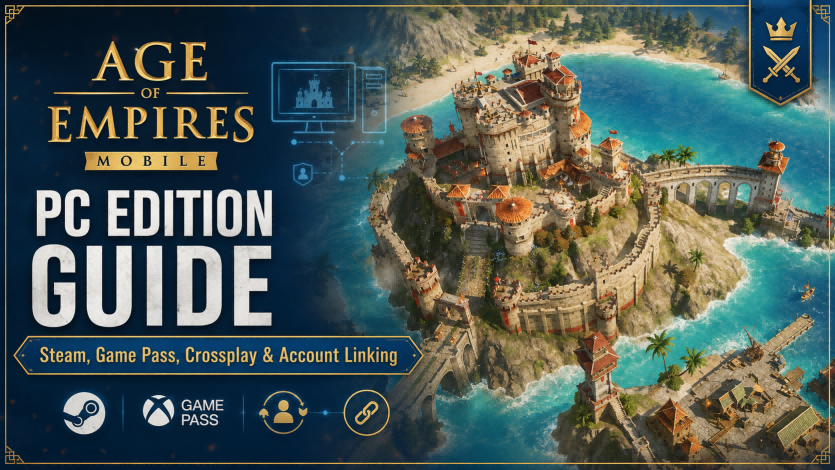
Age of Empires Mobile finally made the leap from pocket-sized RTS to a fully fledged PC experience with the launch of Age of Empires Mobile: PC Edition on June 24, 2026. Now available on both Steam and the Microsoft Store, the PC Edition brings mouse-and-keyboard precision, 4K visuals, and seamless crossplay with the mobile version — all while letting you carry a single account across every device you own. Whether you are a returning mobile commander looking to upgrade your setup or a PC-first strategy fan curious about the latest entry in the franchise, this guide walks you through everything you need to know: where to download, what Game Pass rewards you can claim, how crossplay works, and the exact steps to link your account so no progress is ever lost.
🎁 Need Empire Coins for Age of Empires Mobile?
Want to stock up on Empire Coins? Topuplist offers fast, secure, and competitively priced Empire Coin top-ups for Age of Empires Mobile. With 24/7 customer support, multiple payment methods, and global service, it is a convenient way to ensure you never miss out on limited-time event rewards. Top up your Empire Coins now
What Is Age of Empires Mobile: PC Edition?
Age of Empires Mobile: PC Edition is the desktop-optimized version of the popular mobile strategy game developed by World's Edge and Xbox Game Studios. Rather than a separate game with its own progression, the PC Edition is built as a companion client to the mobile release — same servers, same account, same empire, just rendered and controlled for a desktop environment.
According to the official FAQ, the PC Edition launched on June 24, 2026 simultaneously on Steam and the Microsoft Store. The launch announcement confirms that the release was driven by community demand for a more comfortable, high-fidelity way to play long sessions of AoE Mobile without draining a phone battery or squinting at a small screen.
Key PC Edition Optimizations
The PC Edition is not just an emulator-style port. World's Edge rebuilt the interface and input layer to take real advantage of desktop hardware:
Full mouse controls — drag-select units, right-click to move, scroll-wheel zoom, and hotkey groups just like classic AoE titles
Complete keyboard navigation — every menu, build queue, and diplomacy action can be reached without touching a mouse
Optimized UI — panels, minimaps, and tooltips are resized and repositioned for large monitors
Enhanced 4K visuals — higher-resolution textures, improved lighting, and wider field-of-view options
Multi-monitor friendly — borderless window mode and resizable UI scaling
For players coming from the AoE Mobile website, the upgrade is immediately noticeable the moment a battle fills a 4K screen instead of a 6-inch phone.
PC Edition vs Mobile Edition: Feature Comparison
The two versions are functionally the same game, but the experience differs in important ways. The table below summarizes how the PC Edition stacks up against the original mobile release.
The takeaway: the PC Edition is not a paid upgrade or a sequel. It is the same free-to-play game, tuned for the hardware you already use at your desk. If you have ever wished your phone empire could live on your monitor, this is the version for you.
How to Download AoE Mobile PC Edition on Steam
Downloading the PC Edition through Steam is the most popular route for existing PC strategy players. Here is the step-by-step process:
Open the Steam client or visit the Steam store page in your browser.
Search for "Age of Empires Mobile PC Edition" or click the direct link above.
Click "Play Game" (the green button) — because the game is free-to-play, there is no purchase required.
Choose your installation drive and let Steam download the client (typically 8–12 GB).
Once installed, click Play. On first launch you will be prompted to sign in with the same account method you use on mobile.
After login, your mobile empire will sync automatically — provided your account is properly bound (see the Account Linking section below).
Steam System Requirements
While the PC Edition is optimized, it still needs a reasonably modern machine. Based on the Steam page, the rough requirements are:
If you can run Age of Empires II: Definitive Edition comfortably, you can run AoE Mobile: PC Edition.
Downloading Through the Microsoft Store & Game Pass
If you prefer the Microsoft ecosystem, the PC Edition is also available on the Microsoft Store, and — importantly — it is included with PC Game Pass and Xbox Game Pass Ultimate. This is where the value proposition gets interesting for Game Pass subscribers.
AoE Mobile Game Pass Rewards
To celebrate the PC Edition launch and reward Game Pass members, World's Edge is offering a one-time perk bundle for any Game Pass subscriber who logs into the PC Edition. The rewards are credited to your in-game mailbox the first time you connect with an active Game Pass subscription.
These rewards are a meaningful head start for new PC players and a nice bonus for veterans who already have an established empire. The 1,000 Empire Coins alone are enough to grab a discounted event bundle or accelerate a critical upgrade — and if you ever need more, services like Topuplist offer fast top-ups without leaving your desk.
How to Claim Game Pass Rewards
Ensure your PC Game Pass or Xbox Game Pass Ultimate subscription is active.
Launch Age of Empires Mobile: PC Edition from either Steam or the Microsoft Store.
Sign in with your bound account (Microsoft account linking is the smoothest path for Game Pass perks).
Open your in-game mailbox within 24 hours of first login.
Claim the Game Pass reward mail — items will be added to your inventory instantly.
If the mail does not arrive, restart the client and check again. According to the official FAQ, reward delivery can take up to 24 hours during peak launch windows.
AoE Mobile Crossplay: How It Works
Crossplay is the headline feature of the PC Edition. The same servers, the same alliances, the same world map — players on phone, tablet, and PC all share a single ecosystem. There is no separate PC server and no "PC-only" matchmaking pool.
What Crossplay Means in Practice
Same world, same war — your alliance's territory, enemies, and event rankings are identical regardless of which device you log in from.
Real-time switching — start a march on your phone during a commute, then finish the battle on PC when you get home. The session carries over seamlessly.
No cross-progression limits — buildings, research, heroes, and Empire Coins all sync in real time across platforms.
Mixed-device alliances — your alliance can include mobile-only players, PC-only players, and hybrid users with no friction.
The official Age of Empires Mobile site emphasizes that crossplay was a design goal from the start of the PC Edition project, not a feature bolted on after launch. That means every system — combat, economy, social, events — was built to handle mixed input methods fairly.
Is Crossplay Fair for Mobile Players?
A common concern is whether PC players gain an unfair advantage with mouse and keyboard. In practice, AoE Mobile is a strategy game of decisions, not twitch reflexes. While PC players may navigate menus faster, the core gameplay — troop composition, march timing, alliance coordination — is equally accessible on mobile. World's Edge has also tuned input pacing so that certain actions, like rapid unit deployment, are not artificially faster on PC.
AoE Mobile Account Linking: Step-by-Step
Account linking is the single most important setup step for any player who wants to use both mobile and PC. Without binding, your progress is locked to a single device — lose the device, lose the empire. With binding, your account lives in the cloud and can be opened from anywhere.
Account Linking on Mobile
Follow these steps inside the mobile app:
Launch Age of Empires Mobile on your phone or tablet.
Tap the gear icon (Settings) in the upper-right corner of the main screen.
Select the Account tab.
Tap Bind Account.
Choose your preferred login method — Microsoft, Google, Apple, Facebook, or a guest email/password combo.
Follow the on-screen prompts to authorize the binding.
Confirm that the "Bound" status appears next to your chosen method before exiting Settings.
The official account binding guide recommends binding to at least one third-party account (Microsoft, Google, Apple, or Facebook) and, ideally, a second method as a backup. This protects your empire if you ever lose access to one login.
Account Linking on PC
On the PC Edition, the process is even simpler:
Launch Age of Empires Mobile: PC Edition from Steam or the Microsoft Store.
On the title screen, select Log In.
Choose the same login method you used to bind your account on mobile.
Authorize the sign-in.
Your mobile empire will load automatically — same city, same heroes, same resources.
There is no separate "PC account." Your account is your bound login, and any device that signs in with that login pulls the same save file from the cloud.
Mobile vs PC Account Linking: Side-by-Side
The key rule: use the same login method on both platforms. If you bound with Microsoft on mobile, sign in with Microsoft on PC. Mixing methods — for example, Microsoft on mobile and Steam on PC — can result in two separate save files, which is the most common reason players report "lost progress" after switching devices.
Platform Compatibility at a Glance
Before you commit to a platform, it helps to see exactly what each one offers. Here is a full compatibility breakdown.
If you already pay for Game Pass, the Microsoft Store version is the path of least resistance for reward claims. If your library lives on Steam, the Steam version works equally well — just make sure your Microsoft account is linked inside the game so Game Pass perks can be detected.
Tips for a Smooth Cross-Platform Experience
Once your account is bound and the PC Edition is installed, a few habits will keep your crossplay experience frictionless:
Always bind before you switch devices — do this on mobile first, then sign in on PC.
Avoid simultaneous logins — logging into the same account on two devices at the same time can cause sync errors. Close the mobile app before opening the PC client, and vice versa.
Keep your game updated on every device — version mismatches can block login until the older client is patched.
Use the same region server — accounts are region-locked. If you started on the NA server on mobile, sign into the NA server on PC.
Back up your binding — bind to two methods (e.g., Microsoft + Google) so you have a recovery option if one login is ever compromised.
Claim Game Pass rewards early — the launch reward bundle is a limited-time promotion; do not leave it sitting in your mailbox indefinitely.
Frequently Asked Questions
Is Age of Empires Mobile: PC Edition free?
Yes. Just like the mobile version, the PC Edition is free-to-play on both Steam and the Microsoft Store. Optional in-game purchases such as Empire Coins, monthly passes, and event bundles are available but not required to enjoy the full game.
Do I need Game Pass to play the PC Edition?
No. Game Pass is entirely optional. You can download and play the PC Edition for free without any subscription. Game Pass subscribers simply receive a bonus reward bundle the first time they log in.
Can I transfer my mobile progress to PC?
Yes — that is the entire point of crossplay. As long as your mobile account is bound to a login method (Microsoft, Google, Apple, or Facebook), you can sign in with the same method on PC and your full empire will sync automatically.
Will PC players have an advantage over mobile players in PvP?
Not in any meaningful way. AoE Mobile rewards strategy, timing, and alliance coordination rather than reflex speed. Input differences are smoothed out by the game's pacing, and World's Edge has tuned certain actions to prevent artificial PC advantages.
Can I play the PC Edition offline?
No. Age of Empires Mobile — on any platform — requires a persistent internet connection because it is a live-service multiplayer game with shared world state.
Are Empire Coins shared between mobile and PC?
Yes. Empire Coins, resources, heroes, and all other progression are stored on the server against your account. Anything you earn or purchase on one platform is available on every other platform after signing in.
What happens if I lose my phone?
If your account is bound, nothing is lost. Install the PC Edition (or the mobile app on a new device), sign in with your bound login method, and your empire will be right where you left it. This is exactly why binding is non-negotiable.
Can I use a controller on the PC Edition?
The PC Edition is designed for mouse and keyboard. Controller support is not a primary input method, though some third-party remapping tools may work. For the intended experience, stick with mouse and keyboard.
Conclusion
Age of Empires Mobile: PC Edition is the desktop home the franchise's mobile entry always deserved. With full mouse-and-keyboard controls, gorgeous 4K visuals, seamless crossplay with mobile, and a generous Game Pass reward bundle for early adopters, there has never been a better time to move your empire onto a bigger screen. The setup is straightforward — bind your account on mobile, download the client on Steam or the Microsoft Store, sign in with the same login, and your entire empire syncs in seconds.
Whether you are commanding alliances from your phone during the day or finishing the war from your PC at night, AoE Mobile: PC Edition finally lets you play the way you want, on the device you want, without ever leaving your progress behind. For the latest updates, check the official Age of Empires website and the AoE Mobile homepage.
🎮 Don't Miss Out — Top Up Your Empire Coins Today
Topuplist provides fast, secure, and affordable Empire Coin top-ups with 24/7 customer support and global service. Click here to top up now